

Inbox
The inbox collects the tickets that involve you, across every project you can access, without opening each board. The four views are in the left sidebar and at /inbox/:filter.
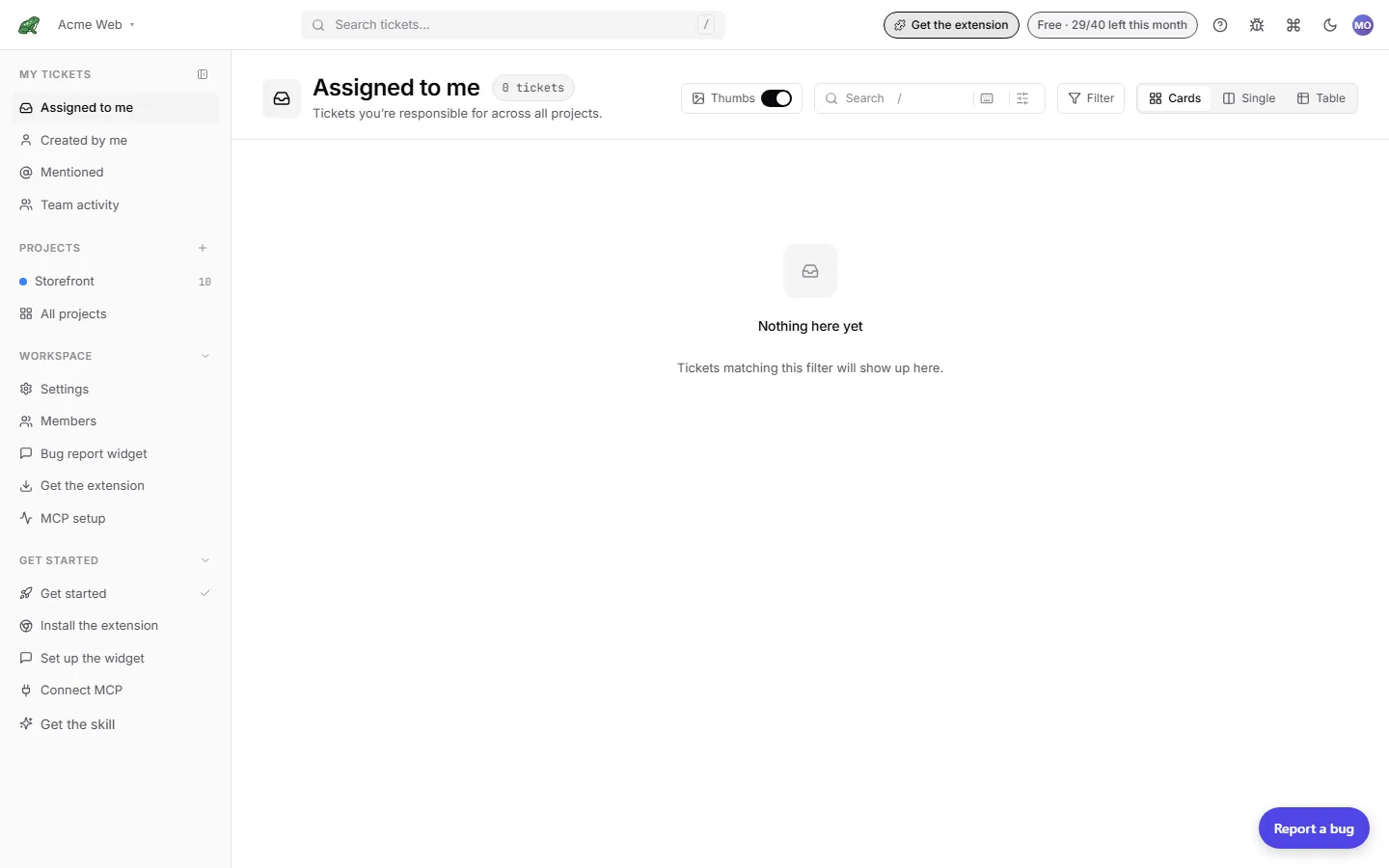
The four views
| Sidebar entry | URL | What it lists |
|---|---|---|
| Assigned to me | /inbox/assigned | Tickets you are responsible for across all projects. |
| Created by me | /inbox/created | Tickets you have captured. |
| Mentioned | /inbox/mentioned | Tickets where you have been @-mentioned, in the description or in any comment. |
| Team activity | /inbox/team | Recent activity across every project you can access. |
Team activity is the only view that shows tickets you are not directly involved in, so it hides description previews on the cards. Open a ticket to read it.
Every view respects project access: a member restricted to certain projects sees only tickets from those projects.
Layout
Tickets are grouped by project. Each group has the project colour, its name, a count, and an Open board link that takes you to that project’s board.
Three layouts, from the view toggle in the header:
- Cards (default): a grid of cards per project group, with thumbnails.
- Table: a dense row per ticket per project group.
- Single: one ticket at a time, with a project picker so you can work one project’s queue in order.
Search and filter
The search box narrows the list as you type. The Advanced search button opens the same search as the top bar, with match scope and date filters. The Filter tickets button opens the filter with quick filters (Has AI activity, Capture partial, Unresolved, Mentions me, Archived), assignees, authors, and a created-date range. Column filters are not offered here because the inbox spans projects with different columns.
Bulk actions
Select cards and a bar appears with Move… (to another column or project), Archive, and assign. Clear the selection with the X.
Keyboard shortcuts
1 to 3 switch layouts, J and K move between tickets, Enter opens the focused ticket, and ? opens the cheatsheet. The keyboard icon in the header opens the same cheatsheet.
Where to next
- Notifications for the email side of mentions and moves.
- Board for the per-project view.
- Comments & mentions for what counts as a mention.