

Record from a page
Open the extension’s page-pins control on the website and choose Record. Select the project and recording mode, check the microphone, and choose a sharing source if recording the screen.
Pin while you talk
- Start recording and describe the first issue.
- Hold
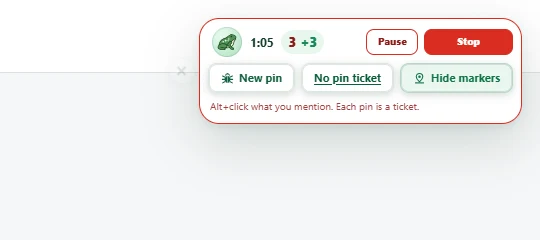
Altto highlight the element under the pointer. Alt+clickthe element to drop a pin and start the next ticket moment.- Continue narrating and marking the other issues.
For an issue that has no particular element, use No pin ticket or Alt+N. This starts a ticket moment without an element anchor. On Mac, Alt is the Option key.
Pinning while recording differs from pressing Alt+C outside a recording: the recording control manages the ticket boundaries while narration continues.
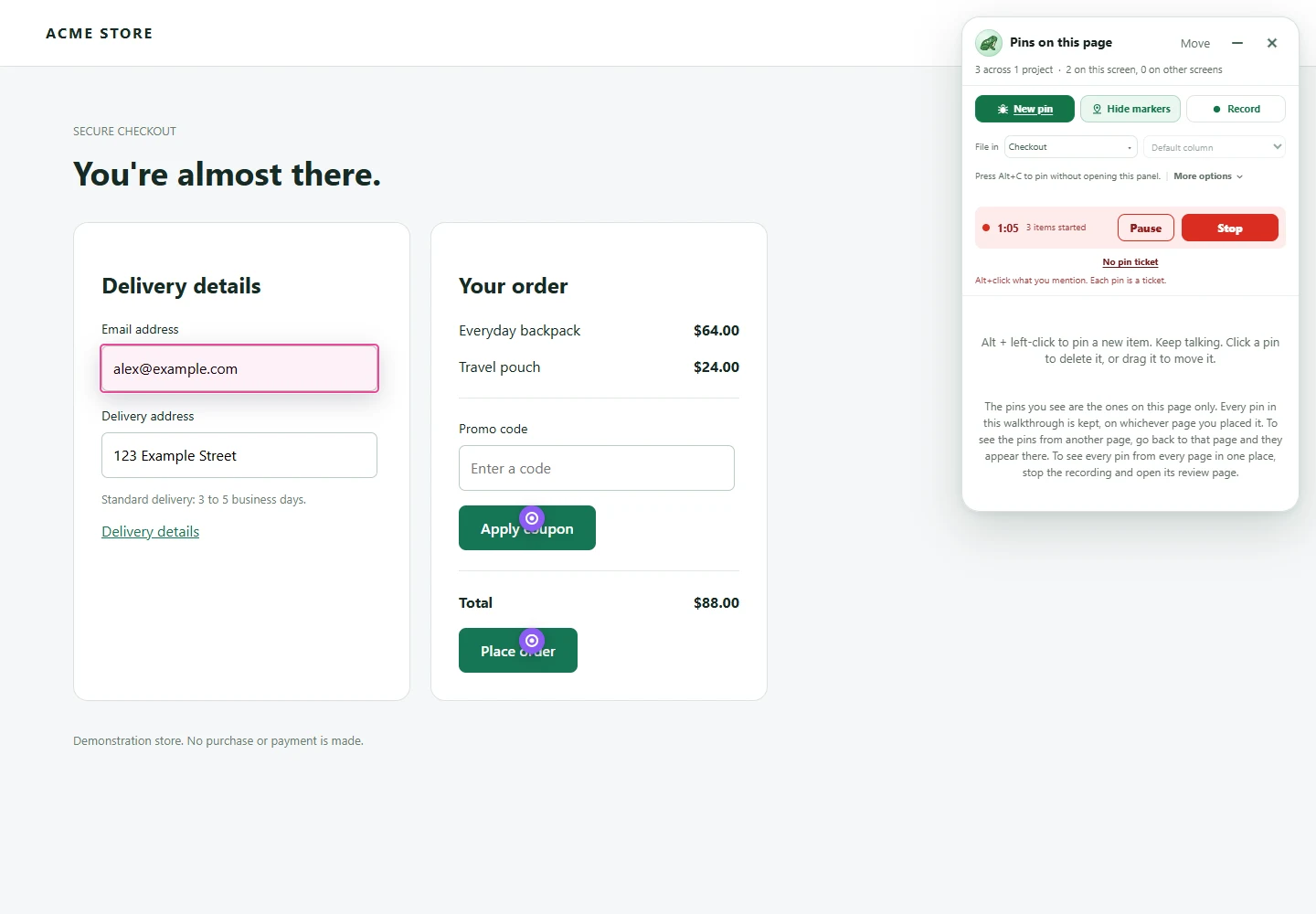
Actual extension controls with a synthetic active-recording state. No screen or microphone recording was made for these images.
Pause and finish
Use Pause when you need to stop capturing temporarily, then Resume to continue. Pausing also prevents placing recording pins. The total paused time is limited to 45 minutes, and the recording itself has the plan’s duration limit, capped at 30 minutes.
Choose Stop, then confirm Are you sure? while the confirmation is shown to end the extension walkthrough. The separate web-app recorder uses a hold-to-finish control. Keep the recording window available while the upload finishes. After processing and transcription settle, Toado files the tickets automatically; pending transcripts can delay this for up to ten minutes after processing is ready. Open the walkthrough to inspect the evidence and edit the filed tickets. Leaving its review unopened does not prevent filing.
Narration-only mode still captures screenshots at pin moments. Choose this mode only when you are comfortable sharing those screenshots as well as the audio.
If something goes wrong
- No microphone audio: check Chrome’s permission and the selected input, then test the mic before retrying.
- No element highlight: return to the tab controlled by the extension and confirm recording is not paused. Browser internal pages and other restricted URLs cannot host page pins.
- Processing incomplete: inspect the recording’s status and use its retry action where offered. Ticket creation waits for required processing.
- Wrong wording: edit the filed ticket title and description on the walkthrough page or full ticket. Draft edits and Create [number] tickets are only available while the session remains unfiled. Set assignees using the live ticket controls after filing.
Where to next
- Recording overview, modes, web recording, review, privacy, and allowances.
- Page pins, manage the resulting element-anchored tickets.