

Walkthrough recording
A walkthrough lets you describe several problems in one recording and turn the marked moments into individual tickets. Start from the extension’s page-pins Record action or open Video walkthrough in the web app. The dashboard’s Start a walkthrough action opens that page too.
Choose how to record
| Mode | What is recorded |
|---|---|
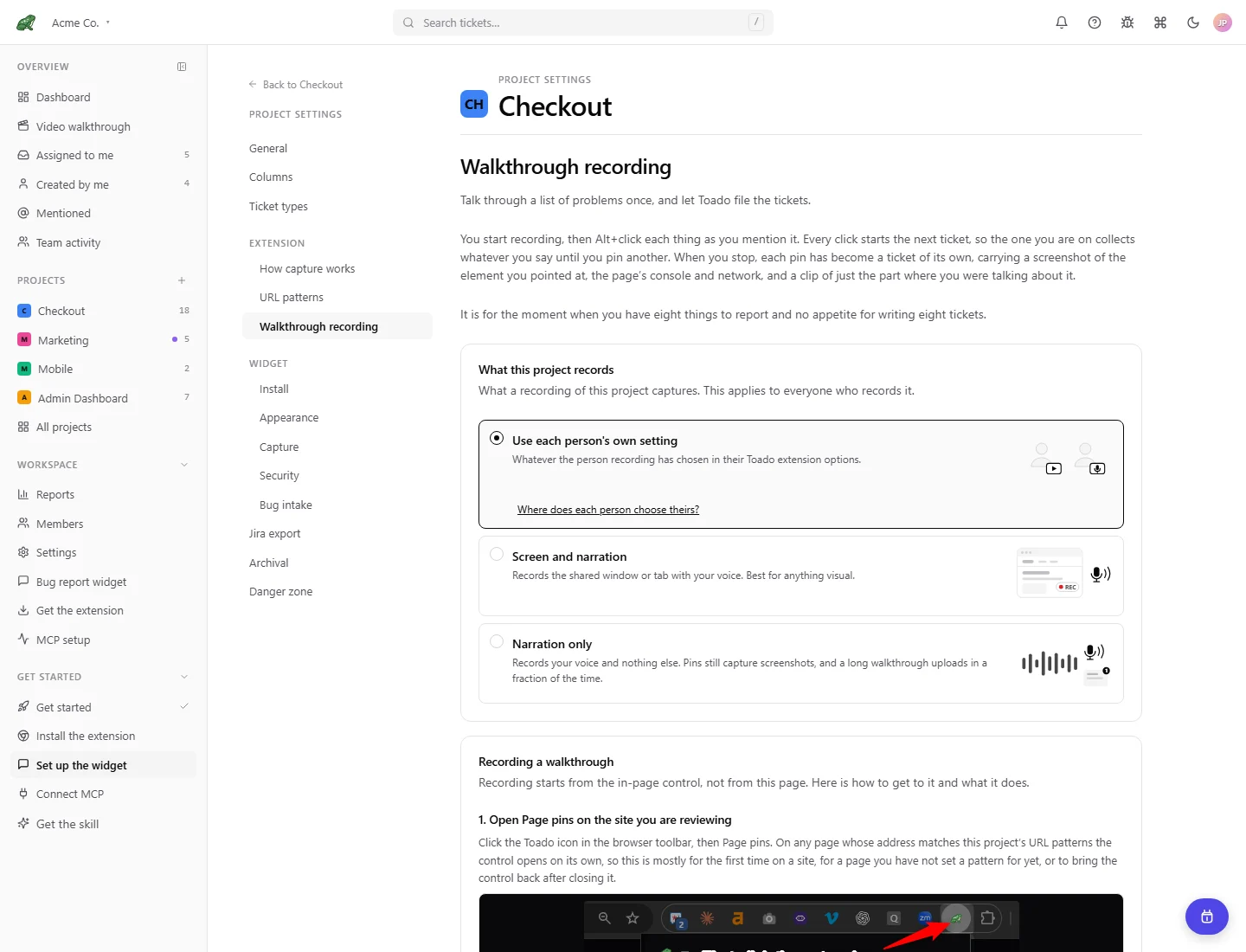
| Screen and narration | Shared screen or tab plus microphone narration. Select the source in Chrome’s sharing prompt. |
| Narration only | Microphone audio without a screen recording. Pin moments still take screenshots and preserve element context. |
Your extension settings can remember your mode. A project’s Walkthrough recording settings can require Screen and narration, require Narration only, or Use each person’s own setting. Follow the mode offered for the selected project.
Where the recorder rollout is enabled, signed-in team walkthrough recording is offered across plans, with plan-specific recording, narration, storage, and retention allowances. Check the current allowance shown by the app. A walkthrough cannot exceed 30 minutes, and your plan can impose a lower limit. Visitor recording through the widget has separate availability and limits.
Record in the web app
- Open Video walkthrough and choose Start walkthrough.
- Select the project and available recording mode.
- Choose what to share when using screen recording, allow microphone access, and test the mic before starting.
- Narrate the problem and use Start describing ticket to mark separate issues.
- Finish using the recording control, then wait for upload and clip processing.
- Toado files the tickets automatically after processing and transcription settle. Open the walkthrough page to inspect the evidence and edit the resulting tickets.
When supported, Keep controls over the app keeps the recorder controls in a floating window. The extension’s in-page recorder adds element highlighting and pinning directly on the site you are reviewing.
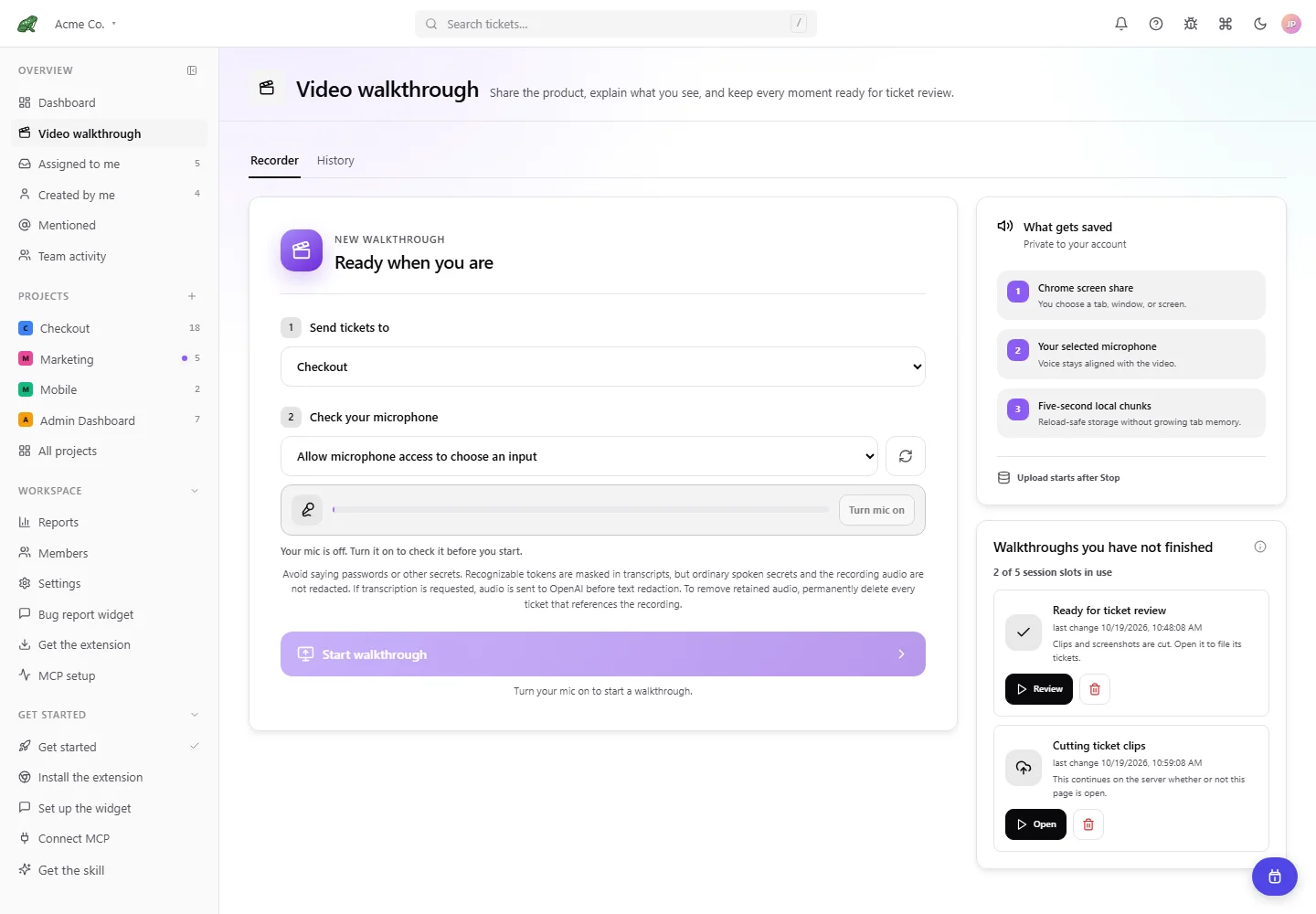
Local demonstration data. No screen or microphone recording was started for this image.
Review and create tickets
For the redesigned Recorder, History, and individual review pages, see Walkthrough pages and history. That guide covers unfinished work, recovery, date and project filters, media status, and editing the filed tickets.
Toado files tickets automatically once clip processing finishes and transcripts have settled. If transcripts are still pending, automatic filing waits up to ten minutes after processing becomes ready. Processing and access failures can prevent filing; follow the page’s status and recovery message. Leaving the page does not hold the tickets for approval.
While a session is still unfiled, the review page may offer draft title, description, type, screenshot, and Drop moment controls, plus Create [number] tickets when manual filing is allowed. This is a temporary state, not a guaranteed approval window. Automatic filing can finish without you using those controls. A pending transcript need not block manual filing, and a terminal clip failure can still allow tickets using screenshots and notes.
Once filed, check and correct the actual ticket title, description, type, and assignment using the live ticket controls. Review the clip or audio and screenshots together; automated wording can need corrections. Tickets are available to the team and agents and can be sent to Jira automatically if that integration is enabled. Do not record material on the assumption that you can remove it before anyone else sees it.
Privacy and retention
To remove retained recording audio, permanently delete every ticket referencing the recording. Archiving one ticket is not equivalent, and physical storage cleanup follows the deletion lifecycle.
Screen recordings, audio, and screenshots can contain what you show or say. Audio is not automatically redacted. When transcription is enabled and requested, audio is sent to OpenAI for transcription before text redaction is applied. Availability depends on workspace AI settings and server configuration.
Media expires according to the workspace’s configured plan retention. A ticket or transcript can remain after its clip expires. Follow the expiry message in the app and data retention reference for the distinction between media and ticket data.
Where to next
- Record from a page, use pins as ticket boundaries.
- Ticket detail, work with the resulting evidence.
- Reports, review walkthrough and narration use.