

The board
The board at /projects/:id/board is the home view of every project. It shows your tickets organized into a kanban, with drag-and-drop between columns.
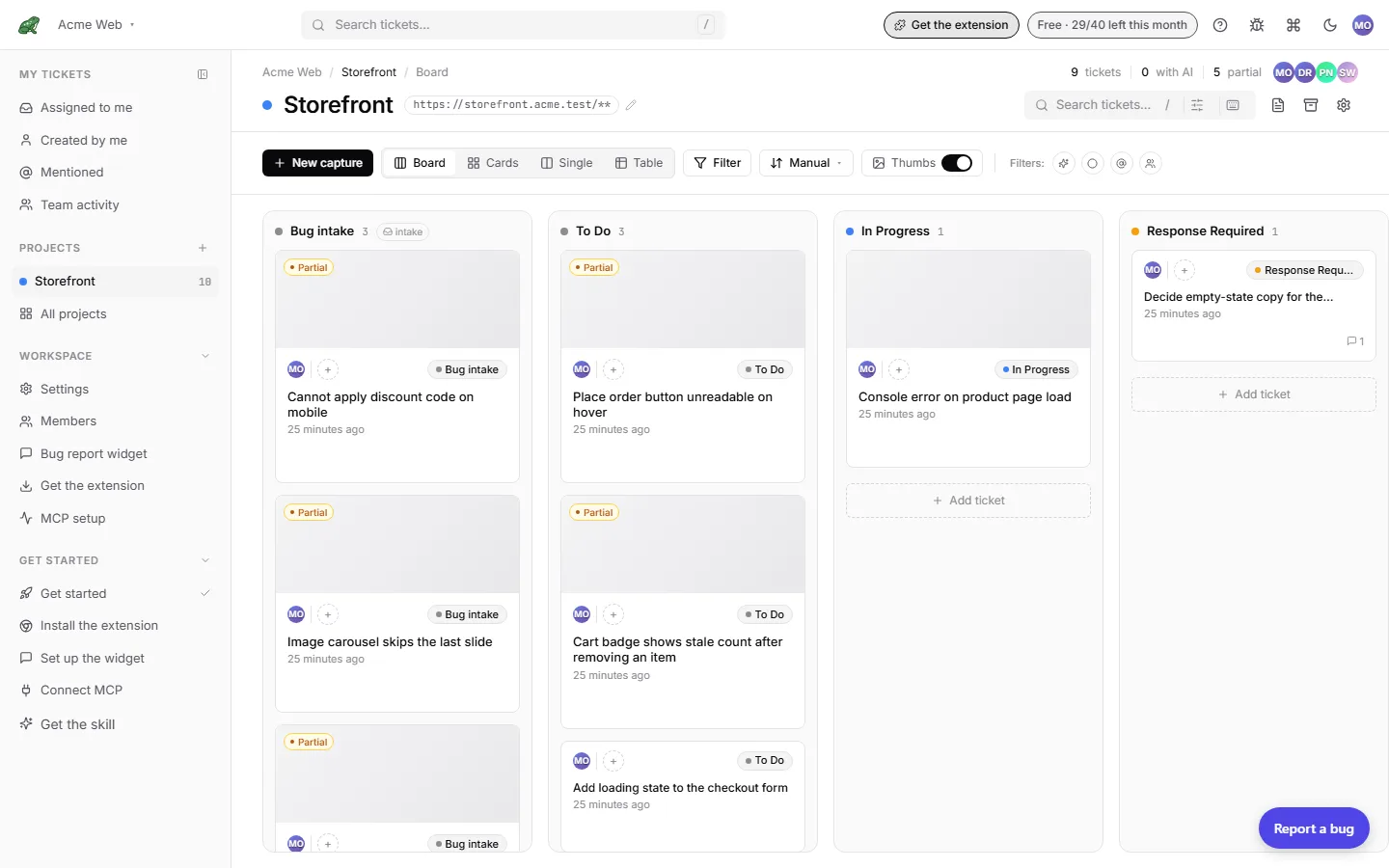
Four views, one board
Toado supports four layouts for the same underlying data. Toggle between them with the view switcher in the top right of the project page.
| View | When to use |
|---|---|
| Kanban | The classic columns-and-cards layout. Best for visual triage with drag-to-move between workflow stages. |
| Cards | A flat grid of every ticket, no columns. Best for “show me everything” scanning across stages. |
| Table | Dense, sortable, filterable. Best for “I have 200 tickets and need to find one.” |
| Single | One ticket fills the page. Best for focused work on one item without sidebar distraction. |
Your view choice is per-project per-user, so each teammate can use the layout that suits them.
Kanban view
The default. Tickets are grouped into columns by workflow stage. Each ticket is a card showing:
- The screenshot thumbnail (toggle with T ).
- The title.
- The creator avatar and timestamp.
- Assignee avatars (if any).
- A small status chip if the ticket is resolved or has a branch in progress.
- A source badge for tickets that did not come from the extension (widget, report link, walkthrough, and so on).
Drag a card between columns to move it. Drag within a column to reorder.
For ticket detail, click the card. Press Esc to return to the board.
Cards view
The same card style as Kanban, but presented as a flat grid across all columns. Useful when you want to scan every active ticket without the visual overhead of stages, or when one column has so many tickets that the kanban feels lopsided.
Cards are sortable (by created date, last activity, assignee). Drag-to-move is disabled in this view; use the ticket detail’s column picker, or switch to Kanban, to change a ticket’s column.
Table view
Columns: Title, Column, Assignees, Created by, Created at, Last comment, Branch.
Click any column header to sort. Hold Shift while clicking another header to multi-sort.
The same drag-to-move semantics work as in Kanban view, but you drag the row.
Single view
A queue mode. The ticket fills the screen. Use J / ↓ and K / ↑ to step to the next or previous ticket in the queue without going back to the board. Press Enter to open the selected ticket in full view, or Esc to return to the board.
Columns
Every new project starts with five columns:
| Column | Purpose |
|---|---|
| To Do | New tickets land here. |
| In Progress | Someone (or an agent) is working on it. |
| Response Required | The ticket needs input from a person before work can continue: a clarification, a design call, or access that is blocked. The toado-triage skill moves a ticket here out of In Progress when it hits that wall, rather than leaving it in In Progress with a blocked note, so the board shows the state at a glance. It is never moved back to To Do: blocked work is not available work. |
| In Review | The fix is ready for a human checkpoint. |
| Done | Finished. This is the project’s terminal column. |
Rename, add, remove, and reorder columns from Project settings › Columns. Drag to reorder, click the name to rename, click the trash icon to remove, then Save columns. A project can have up to 15 columns. Deleting a column moves its tickets to the leftmost remaining column.
There is no enforced workflow. Any column can move to any other column.
The optional Bug intake column
Projects that collect reports from outside the team can turn on a Bug intake column. It sits at the left of the board and holds widget and report-link submissions until a person judges them; extension captures, manual tickets, and walkthrough tickets never land there. The column carries a small intake chip that links to the setting. Select several intake cards and use Move… to promote the real ones or Archive to clear the noise.
Turn it on from Project settings › Bug intake or the matching checkbox on the Columns tab. See Bug intake for what changes when the toggle flips.
Filtering and search
The search box in the board toolbar filters the visible tickets as you type. It matches title and description.
Quick filter chips next to it: Has AI activity, Capture partial, Unresolved, Mentions me, and From customers. From customers narrows the board to widget and report-link tickets. The Filter button opens the full filter with assignees, authors, columns, created-date range, and Archived.
For search across the whole company, see Search & filters.
Walkthrough
Keyboard shortcuts
| Action | Shortcut |
|---|---|
| Switch to Kanban view | 1 |
| Switch to Cards view | 2 |
| Switch to Table view | 3 |
| Switch to Single view | 4 |
| Cycle through views | V |
| Toggle card thumbnails | T |
| Focus the search bar | / |
| Clear search | Esc |
| Focus next ticket (Cards / Table) | J or ↓ |
| Focus previous ticket (Cards / Table) | K or ↑ |
| Open the focused ticket | Enter |
| Open the shortcut cheatsheet | ? |
Full shortcut list: Reference › Keyboard shortcuts.
Dashboard, Reports, and Jira
Use the dashboard to find current work across accessible projects, and Reports for historical trends and recurring issues. Selected board tickets can be sent to Jira or unlinked in bulk when configured; follow the Jira guide for permissions, confirmation, and partial-success handling.
Where to next
- Ticket detail, inside a single ticket.
- Bug intake, triaging reports from outside the team.
- Inbox, your tickets across every project.
- Search & filters, search across projects.