

Widget security
The widget is public-facing. Secure it with allowed origins, Toado’s abuse controls, careful capture settings, and a tested Content Security Policy (CSP).
Approve detected origins
After deployment, open the site and return to Project Settings → Widget → Install. Select Verify installation, and the panel reports Snippet detected or Not detected yet. Under Requested by (self-reported), each origin carries Allow this site, a staged marker once you have clicked it, or Allowed once saved. Origins include scheme, host, and non-default port: https://app.example.com and http://app.example.com:3000 are different.
Until the list has its first entry the widget is in learning mode: it accepts a report from any site holding the key and records where the key was seen. Adding the first site switches it to strict, so add every site you use in the same save, or you will block the ones you left out. The list holds up to 25 entries, and a single-label wildcard such as https://*.acme.com is accepted (app.acme.com matches, a.b.acme.com and the bare acme.com do not).
The list is self-reported by whoever requested the settings, so allow only origins you recognise. Anyone who copies your key can appear there.
An allowlist stops other websites from embedding your key. It cannot stop a script posting directly, which can send any origin it likes, so the captcha and the rate limits are what bound that.
Allowing a site also adds the matching pattern to the project’s URL patterns, so captures on that site route to this project. Toado says so when it happens, and the patterns can be removed on the project’s URLs page.
CAPTCHA and rate limits
Anonymous submissions are verified with Cloudflare Turnstile, which usually passes without interrupting the reporter and can show an interactive challenge when the provider asks for one. Server-side rate limits apply as well, per reporter address and per widget, and cover both attempts and accepted reports.
One exemption exists: a team-mode widget whose allowed-sites list is not empty skips the visitor captcha on the embedded report form and on the quick-capture handoff, and the widget stops loading Turnstile on those pages. Origin checks and rate limits still apply. The exemption never extends to the hosted report link, which verifies the captcha on every submission.
Content Security Policy
Open Content Security Policy on the Install page and copy the block generated for the current configuration. Merge its sources into your existing directives; do not replace whole directives, or your own scripts stop loading. It covers five:
script-src, for the widget and the captcha.connect-src, for the settings fetch and the report itself.frame-src, used only when the captcha shows a challenge.img-src, includingdata:, because the screenshot is built as a data image before it is sent.style-srcwith'unsafe-inline', because the widget styles itself and the screenshot copies your page’s computed styles.
Toado is explicit about the last one: 'unsafe-inline' in style-src applies to your whole page, not just the widget, and re-enables inline styles everywhere. Weigh that with whoever owns your CSP. The widget still works without it, but it renders unstyled and its screenshots come out blank.
An uploaded launcher icon is served from Toado and needs no extra entry. Test the effective response header after clearing browser and CDN caches.
Sensitive data
Choose the least capture depth that meets the debugging need. Toado masks form fields in screenshots and strips credential-shaped headers and query parameters before upload, but no automated filter understands every application-specific secret. Avoid unnecessary personal questions and test representative pages.
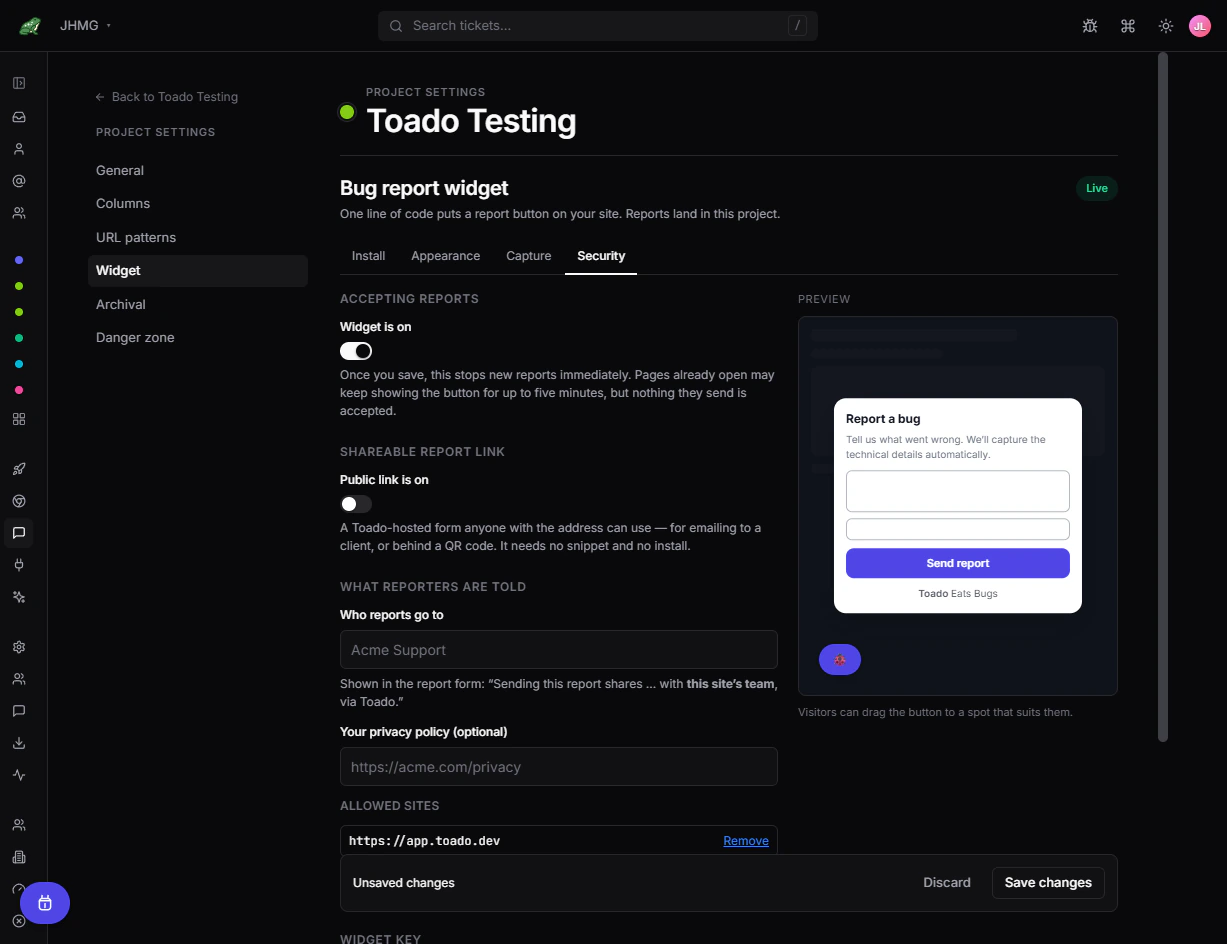
Two fields under What reporters are told set what the form says. Who reports go to is the name shown in the reporter’s notice, “Sending this report shares … with that name, via Toado”; leave it empty and the line falls back to a generic one rather than exposing your workspace name. Your privacy policy (optional) takes an https URL and links it in the form.
The submitting address of an anonymous report is kept for abuse investigation and nothing else. It is never returned by the API or shown anywhere in the app, and the retention job clears it 30 days after the ticket was created while keeping the ticket itself.
The customer operating the widget decides what to collect and is responsible for required notice and consent. See Data retention for current policy status.
Turn the widget off
Turn off Widget is on and save. New reports are rejected immediately, although already-open pages can show the cached launcher for up to five minutes.
Rotate the widget key
- Go to Project Settings → Widget → Security and save or discard any pending edits; Rotate is disabled while changes are unsaved.
- Under Widget key, select Rotate, then hold Rotate key in the Rotate the widget key? confirmation.
- Copy the newly generated snippet from Install.
- Replace the old snippet in every environment and deployment template.
- Deploy, open each site, verify installation again, and submit a test.
Rotation invalidates every use of the previous key immediately. There is no overlap window, it cannot be undone, and the install history resets: detection reports Not detected yet until a page carrying the new key loads. The page records the date of the last rotation.
Public report links
Public report links are generally available and switched off per project. Public link is on, under Shareable report link, enables a Toado-hosted form at /r/ plus the project’s widget key; the page shows the address, a copy button, and a QR code for opening it on a phone. It installs no launcher and needs no snippet, which makes it the path for emailing a client or putting a code on a kiosk.
It runs on the same ingestion as the embedded widget but is a separate front door: it needs Widget is on as well as its own switch, it only accepts submissions from Toado’s own page, it always verifies the captcha, and the tickets it produces carry a Report link source badge. With either switch off the link answers as though it does not exist.
Where to next
- Bug report widget, install and quickstart.
- Widget capture, what each capture level collects.
- Widget appearance, the launcher, dialog, and questions.
- Data retention, how long evidence is kept.
- Security, how Toado protects workspace data.
- Widget troubleshooting, rejected reports and blocked loaders.