

Archive & restore
Archiving moves a ticket off the active board into the archive view while preserving all its data, comments, and capture context. It is the right action for “I am done with this and do not want it cluttering the board” without committing to deletion.
Archive vs. delete
Archive is reversible. Delete… is permanent: it removes the ticket along with its capture and attachments, and every place it appears asks you to confirm first.
The reasoning for preferring archive: tickets carry capture data (network, console, errors) that is occasionally useful months later. Archiving reclaims board space without losing the audit trail.
Remove from a page
Remove in the page-pins control archives the ticket with a ten-day removal deadline. Restore it before that deadline to cancel scheduled deletion. Direct Delete is different and has no self-service Archive restore. See Data retention.
Archiving a ticket
From the ticket detail page: open the More menu and choose Archive. The confirmation toast reminds you it can be restored from the Archive view.
From the board or the inbox: select one or more cards and click Archive in the bulk action bar.
From an AI agent via MCP: archive_ticket(ticket_id). See Tools reference.
What happens on archive
- The ticket disappears from the board.
- It remains visible in the project’s Archived tickets view.
- Search leaves it out unless you turn on Include archived in advanced search or the Archived quick filter.
- Comments and attachments are preserved as-is.
- The column the ticket was in is recorded so restore knows where to put it back.
The archive view
Each project’s archive is at /projects/:id/archive. The page is titled Archived tickets and has a search box (Search archive…), a Cards or Table toggle, sort (Newest first, Oldest first, Last activity, Most comments), and Filter.
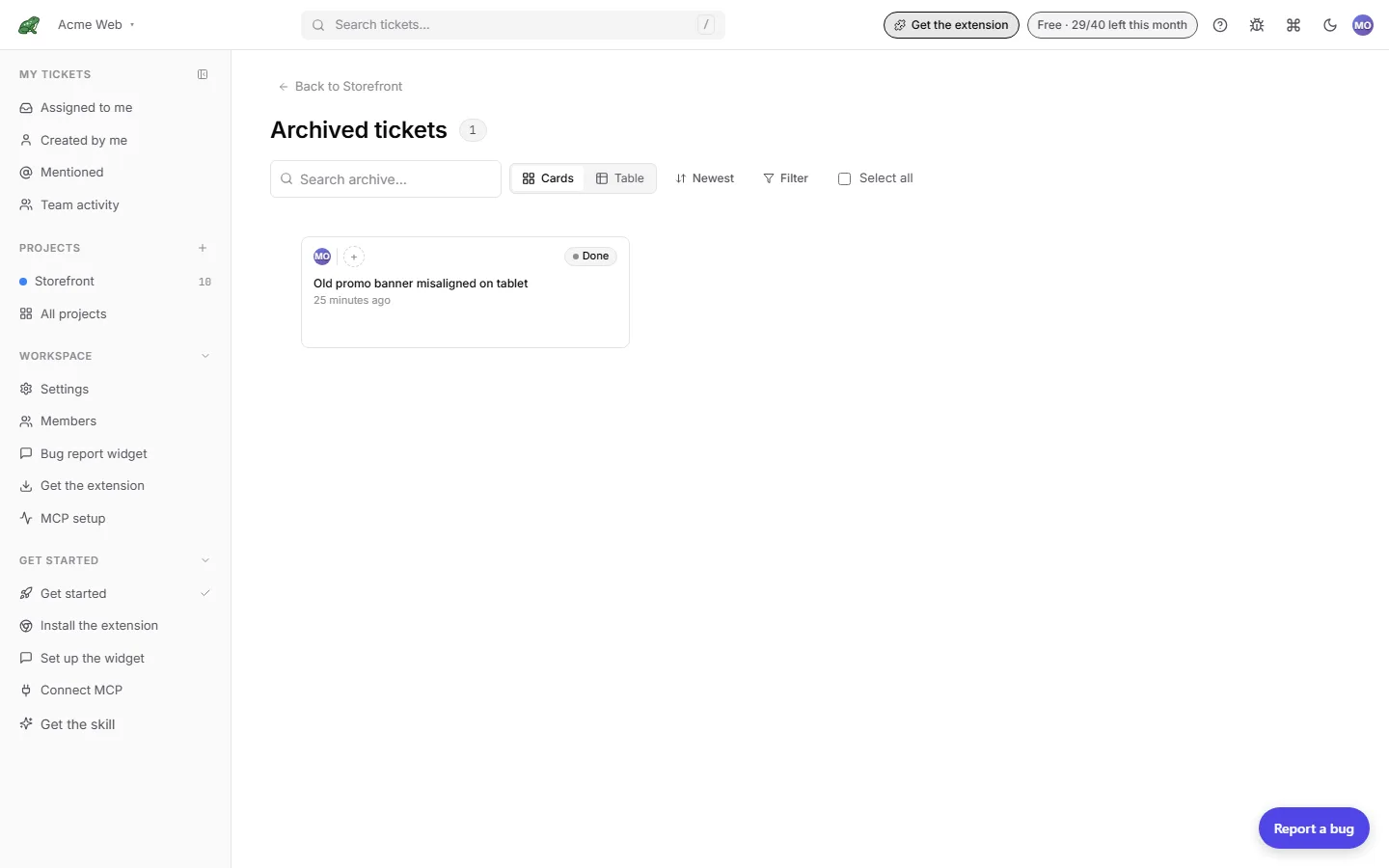
Per ticket, the overflow menu offers Open, Copy link, Open source URL, Set branch name… (or Edit branch name…), Restore, and Delete…. Select several and the bar offers restore and delete in bulk.
Restoring
From the archive view choose Restore, or from an AI agent call restore_ticket(ticket_id). The ticket lands in the column it was archived from. If that column has been deleted in the meantime, it lands in the project’s first column.
Automatic archival
Inactive tickets (no moves, comments, updates, or assignments) can be archived on a schedule. The policy has three levels, each overriding the one above it.
Company default. Company settings › Archival has an Archive tickets automatically switch and a Days of inactivity before archive field.
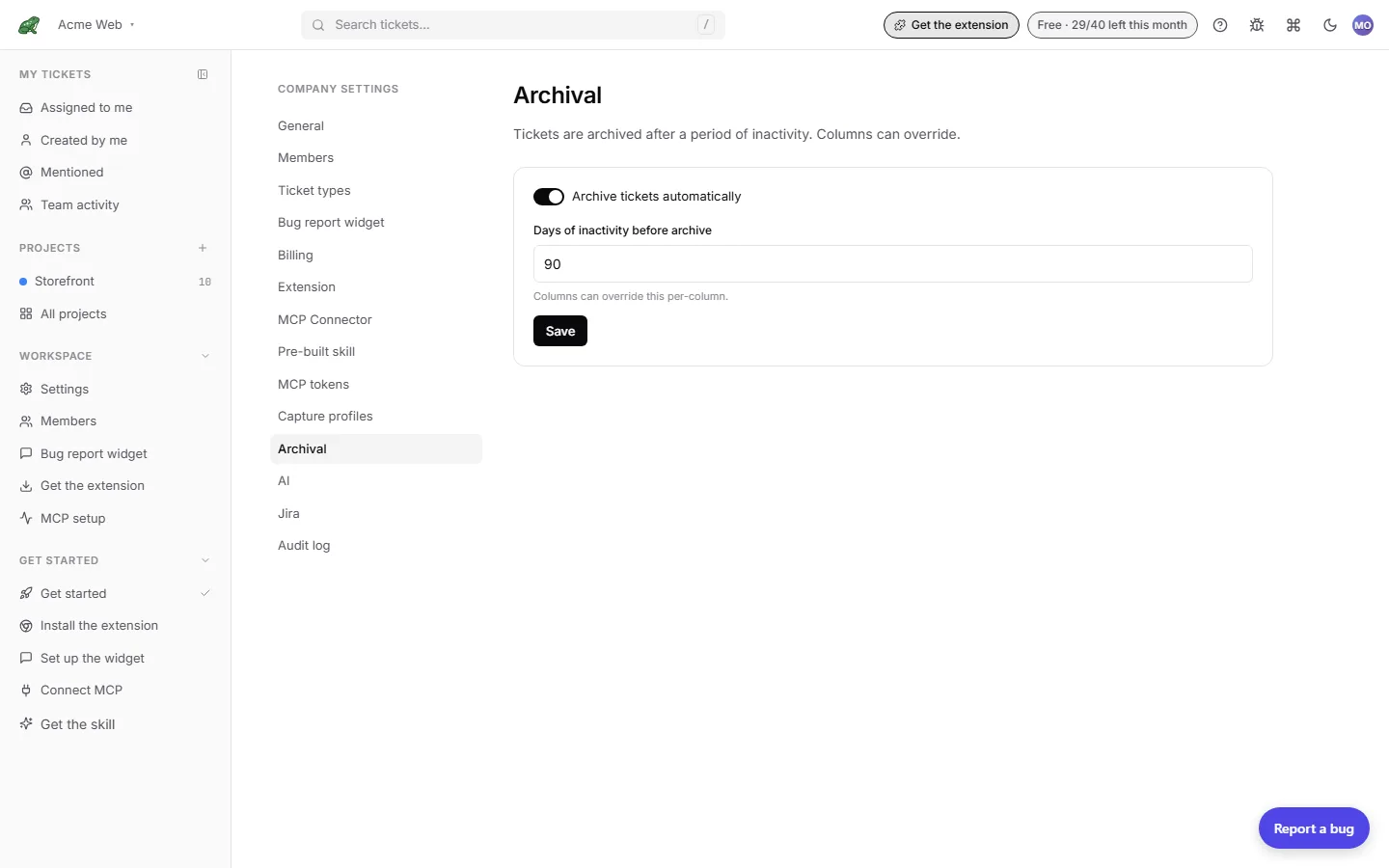
Per project. Project settings › Archival overrides the company default for one project: tick Enable per-project archival and set Days of inactivity before archive (0 archives immediately; a typical range is 30 to 180; the maximum is five years).
Per column. Individual columns can override the project value from the Columns tab, so a Done column can archive faster than an In Progress column.
Tickets archived by policy appear in the same archive view as manually archived ones and restore the same way.
When to archive vs. when to leave on the board
Some teams archive aggressively (Done is a transient state; once human review confirms the fix, archive). Others leave Done populated for reference and only archive truly stale tickets, or let the archival policy do it.
Both are fine. Toado does not enforce a workflow.
Cross-project moves vs. archive
If you captured into the wrong project, move the ticket rather than archiving it. Use Move to project… from the ticket’s More menu, or Move… from the bulk action bar. Cross-project moves within the same company are supported; a move never lands in a Bug intake column. From MCP, see move_ticket in the tools reference.
Where to next
- Data retention for what eventually gets purged.
archive_ticketandrestore_ticketMCP tools.- Drafts for the other place tickets sit off the board.
- Board for the live board view.