
Page pins
Page pins attach a ticket to the element you are looking at. The panel and markers stay on the website so you can report, locate, and discuss a problem in context.
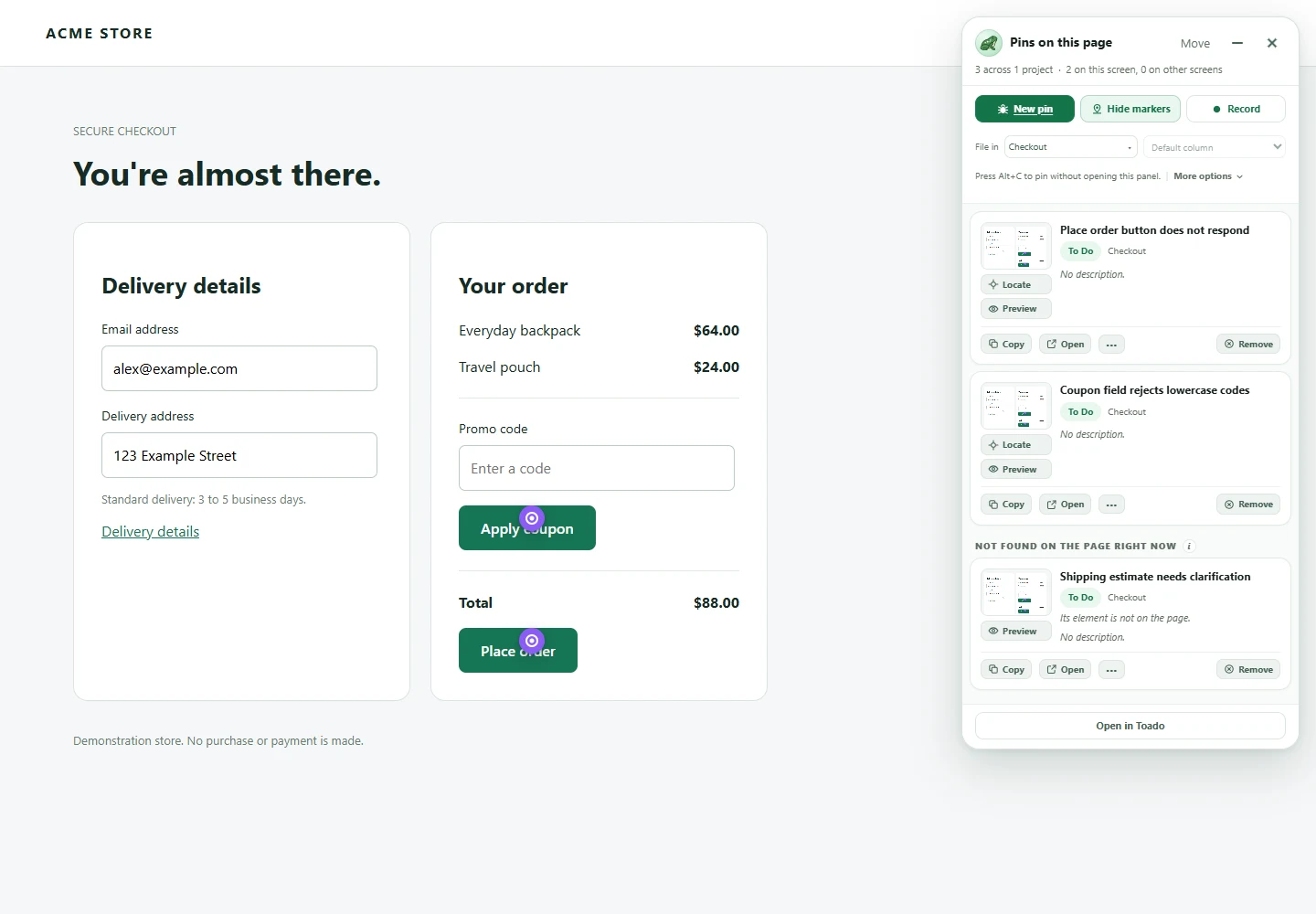
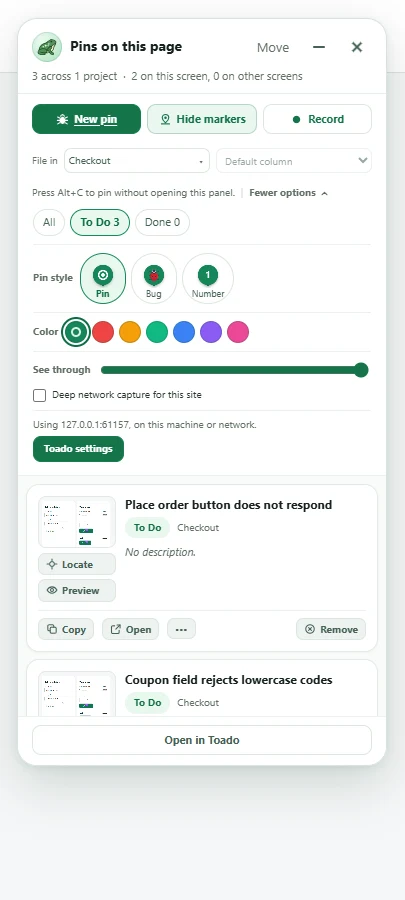
Actual 0.2.0 extension UI on a local demonstration store. Select any screenshot to view it at full size.
Place a pin
- Connect the extension to your account and open an ordinary website tab.
- Make sure the site belongs to the intended project through its URL patterns. If prompted to add the site, choose or create the appropriate project.
- With In-page logging enabled in extension settings, press
Alt+C, or use New pin in the page-pins control. - Point at the element and click to place the pin. Toado captures the screenshot at that moment and opens the composer.
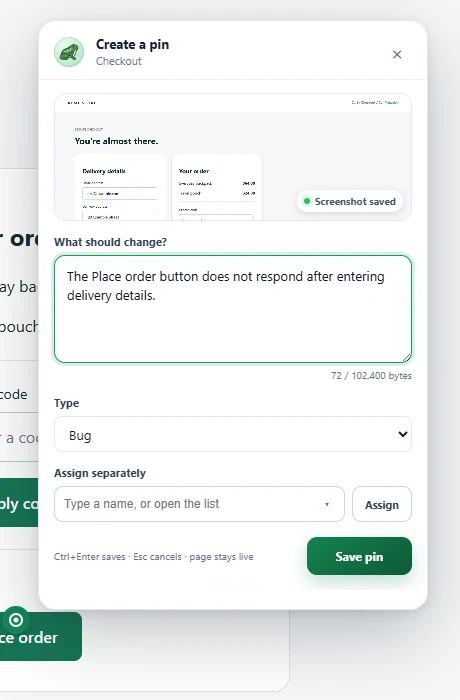
- Write What should change?. Add mentions, choose Type, and use Assign for the responsible teammate. Mentions and assignment are separate actions.
- Choose Save pin, or press
Ctrl+Enter(Cmd+Enteron Mac).Esccancels the composer.
The composer starts with a description rather than a title field. Toado supplies a title from the report; you can edit it later in the ticket preview or web app. For Number markers, the composer also lets you choose a number from 1 to 99.
If In-page logging is off, Alt+C uses classic capture instead. The popup’s Capture action remains available for that flow. Chrome shortcut assignments can be changed, so check chrome://extensions/shortcuts if the keys do nothing.
Work from the page-pins panel
Expand the control to see the page’s pins. Rows show a screenshot thumbnail and ticket details. Open a pin’s preview to read or edit its title and description, change type or assignment, and read or add comments. Use the column control to move it through the workflow.
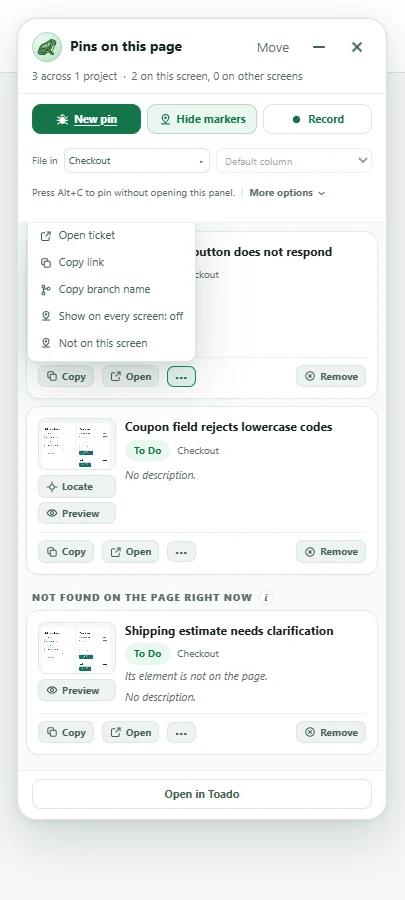
Use Locate to find the anchored element and Preview to inspect its screenshot. The screenshot preview can zoom and expand. Pin actions include opening the ticket in Toado, copying its link or branch name, and removing the pin ticket. Remove archives it with a ten-day deadline; restoring from Archive before the deadline cancels removal. Check the removal prompt before confirming.
Show markers and Hide markers control page overlays. Hiding markers keeps the tickets. Minimize the control when it gets in the way, then expand it to continue. Filters help narrow the pin list.
Control which screen shows a pin
A single URL can host several screens, tabs, or states. Toado uses page-text signatures to distinguish them. This is separate from viewport width: responsive layouts can also move, hide, or replace the anchored element.
| Action | What it does |
|---|---|
| Show on every screen | Allows the pin across different app screens or states sharing that page address. It does not disable viewport-size matching. |
| Not on this screen | Hides the placement for the current app screen or state. |
| Show here again | Restores a placement hidden for the current app screen or state. |
| Show at that size | Attempts to resize the browser window to the captured size. This changes the whole browser window, not just the page preview. |
If a page redesign removes the original element, Toado may be unable to locate it reliably. Check the captured screenshot and URL instead of assuming a marker on a nearby element is correct.
Appearance and deep capture
The control offers Pin, Bug, and Number marker styles, project colour or a colour override, and panel transparency. These help keep markers readable over different site designs.
Deep network capture for this site is a separate per-site setting for richer network evidence. Read its warning before enabling it: deeper inspection can interact with bot protection and site behaviour. It does not override a workspace’s capture profile restrictions.
Page anchors and screenshot markers
A marker on the live page identifies an element. A marker on the saved screenshot identifies a position in that image. Moving a screenshot marker in the annotation editor does not move the live-page anchor.
Where to next
- Recording from a page, pin while narrating a walkthrough.
- Annotation toolbar, draw on saved screenshots.
- Ticket detail, inspect element and capture evidence.