

Dashboard
Click the frog logo or Dashboard in the sidebar to return home. The dashboard brings together work from the projects you can access in the selected workspace.
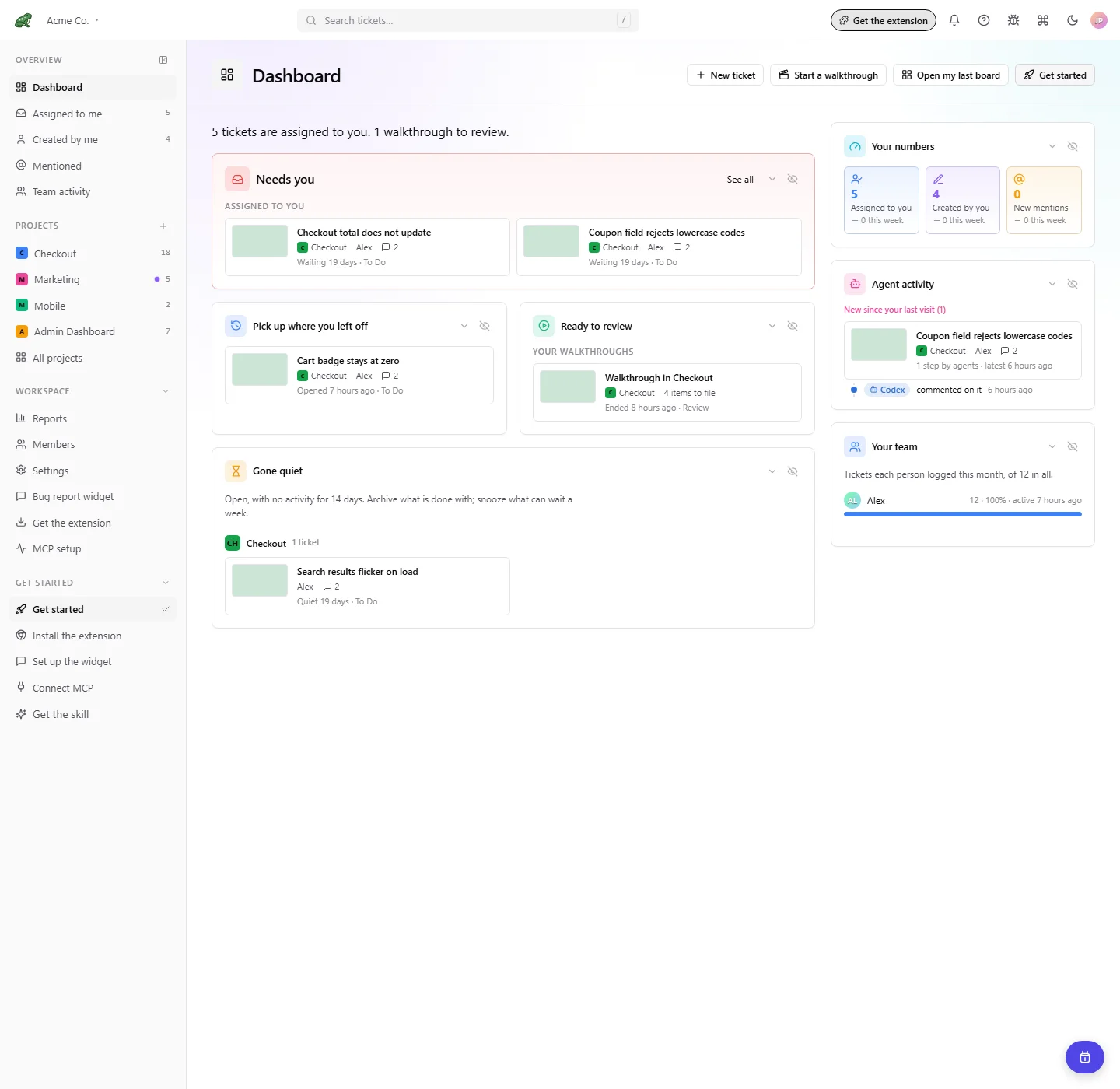
Toado 0.2.0 interface, shown with local demonstration data.
Start from the header
| Action | Where it takes you |
|---|---|
| New ticket | Opens the new-ticket flow on your last board, or Projects if there is no last board. |
| Start a walkthrough | Opens Video walkthrough, where you can begin a narrated walkthrough. |
| Open my last board | Returns to your last project board, or Projects if you have not opened one. |
| Get started | Opens the setup checklist. Hide getting started closes it. |
A new workspace shows the setup checklist first. Work cards appear once the workspace has a project and a ticket. The checklist covers creating a project, choosing the extension or widget for capture, connecting an AI agent, and downloading the triage skill.
Read the work cards
| Card | Use it for |
|---|---|
| Needs you | Tickets assigned to you and work waiting for your response. Follow See all into the inbox. |
| Pick up where you left off | Reopen recently visited tickets without searching the board. |
| Ready to review | Walkthroughs not yet filed and reports waiting in project bug intake. Walkthroughs can file automatically without review. |
| Gone quiet | Open tickets that have had no activity for the number of days shown. Archive finished work or snooze a ticket for seven days in this browser. Snoozing is local to this browser, not a team-wide ticket state. |
Cards with nothing to show can disappear. All clear is a normal state when nothing needs your attention. Live changes refresh the cards as your team works.
The side panel shows Your numbers and Agent activity. Workspace owners also see Your team. On a narrow screen the panel follows the work cards. Use J and K to focus ticket or walkthrough blocks and Enter to open one.
Find workspace health and historical reports
For trends, hotspots, people, connected systems, and plan use, open Reports. Owners find Connected systems, Plan usage this month, and Plan and people under Reports > Workspace.
Where to next
- Inbox, handle assigned work and mentions.
- Reports, understand trends and recurring problems.
- Walkthrough pages and history, review unfinished work and revisit filed walkthroughs.