

Your first pin
Start with a page pin in the 0.2.0 extension. This keeps the report attached to the element you are looking at.
Connect and select the site
- Install the extension and connect your Toado account.
- Open a normal website tab where extension access is allowed.
- Make sure the page belongs to the intended project. Project URL patterns route sites to projects; if Toado asks to add the site, choose or create the right project.
- Open extension Options and confirm In-page logging is enabled.
Describe the change
- Press
Alt+C, or use New pin in the page-pins control. - Click the element that needs attention. A marker appears and the pin composer opens.
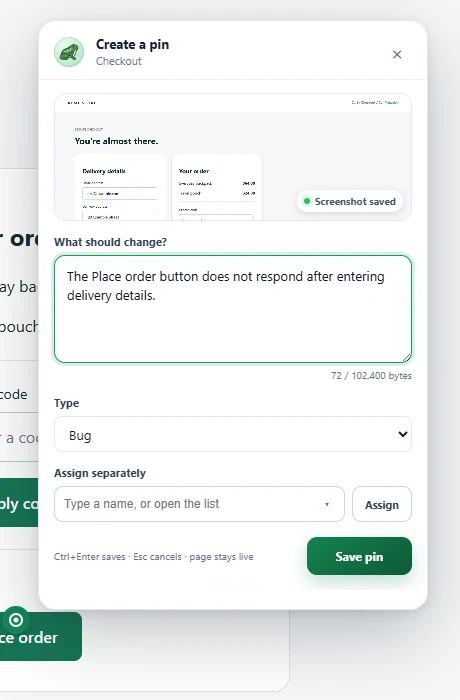
- Write What should change? with the expected behaviour and what you saw.
- Choose Type and use Assign if someone should take the work. You can also mention a teammate with
@. - Choose Save pin or press
Ctrl+Enter(Cmd+Enteron Mac).
The screenshot is taken at placement time. Toado supplies a title from your report; edit it later if needed. The saved pin appears in the page-pins panel, where you can preview its evidence or open it in Toado.
Review and hand off
Open the ticket to check its project, screenshot, element context, description, and available debugging evidence. Add screenshot annotations if helpful. Move it through the board or ask your MCP-connected agent to investigate.
The dashboard helps you return to work that needs attention. If your team uses Jira, follow Jira integration to send the ticket after the project is mapped.
Other ways to capture
For a classic viewport capture, use Capture in the extension popup. Turning In-page logging off also makes Alt+C use classic capture. For several issues in one narrated session, use Record from a page.
Where to next
- Page pins, screen controls, previews, comments, and marker appearance.
- The board, triage tickets and use bulk actions.
- Ticket detail, inspect the saved evidence.