Placing a pin
A pin is a ticket filed at an exact spot on a page. You aim, click, describe, save. The screenshot is taken the instant you click, the ticket records which element you clicked, and you never leave the page.
Arm pin mode
Three ways in, all on a site a project has claimed:
- Press Alt + C . This arms pin mode when In-page logging is on in the options page (the default for a fresh install). With it off, the same key performs a classic capture instead.
- Press New pin in the pins panel or on the pill.
- During a walkthrough, hold Alt and click. See Pin while you record.
The cursor becomes a crosshair and a hint appears at the top of the page: “Click the exact spot to pin · Esc cancels”. Move over the page and the element under the pointer gets an outline. When the pointer settles, the outline moves to the nearest element Toado can track reliably, which is usually the button, row or card rather than the span inside it.
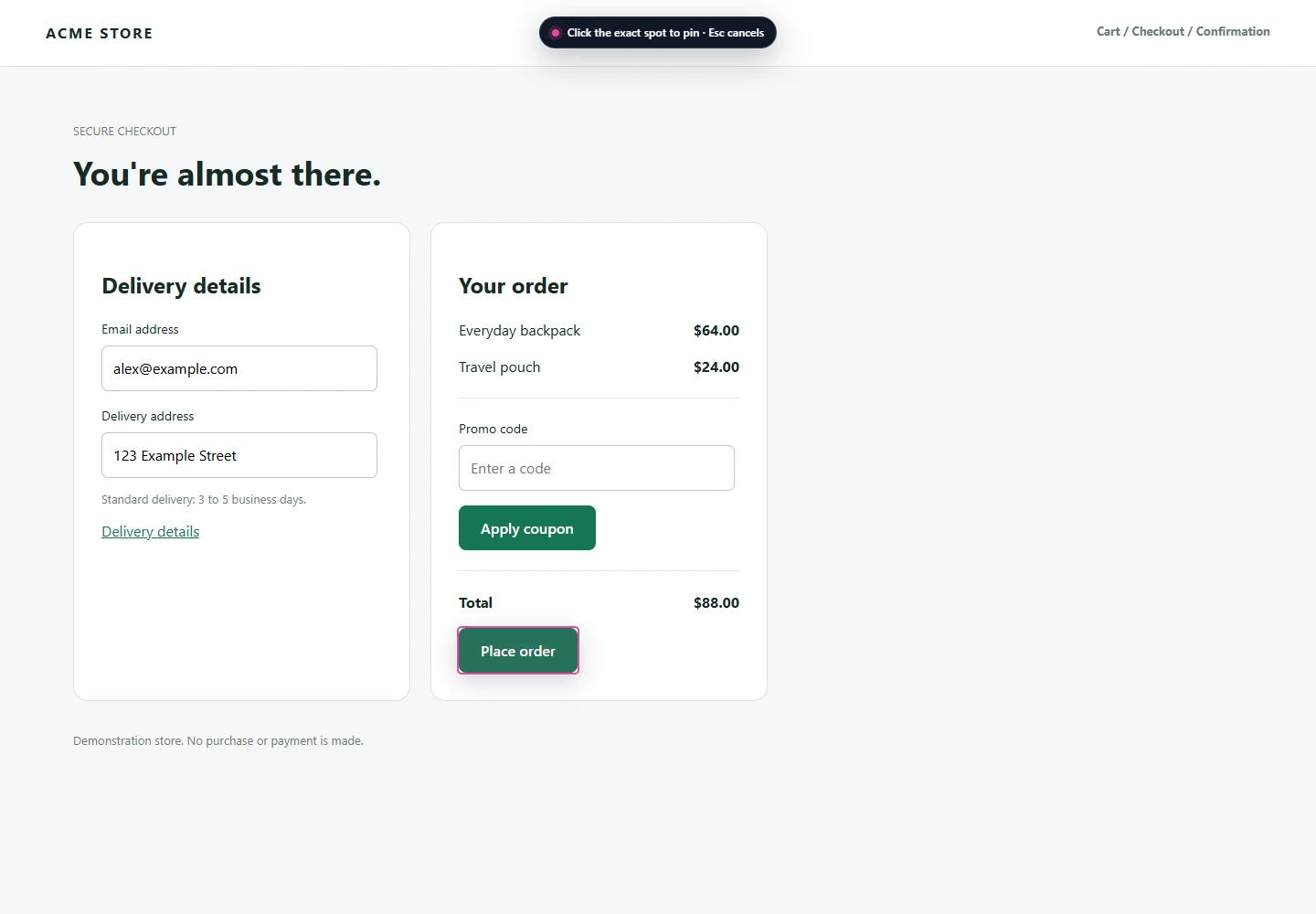
Toado 0.2.0, shown with local demonstration data. Select the image to view it at full size.
While you are aiming, the page cannot see your press. Aiming at Delete account does not press it. Pin mode times out after three minutes with the message “Pin mode timed out. Press Capture or the shortcut to aim again.”; the hint counts down the last seconds. Esc cancels at any point before you save.
If pin mode refuses to start, the message says why: “In-page logging is turned off in Toado settings.”, “Pin mode is not supported on this page.”, “Connect Toado before creating a pin.”, or “Pin mode is not enabled for this account.” The first is your toggle; the last is a server-side switch your workspace owner controls.
Click the spot
On click, in this order:
- The overlay records the point, the document position, and the element under the pointer, then removes the crosshair.
- The service worker takes the screenshot. This is the banked evidence: no marker, no crosshair, no composer in it, and nothing the page does afterwards can change it.
- The marker appears at the recorded point and the composer opens next to it.
The pin is positioned in document coordinates, so it scrolls with the page. The page stays live: you can scroll to check something while you type.
If you clicked an element Toado cannot identify reliably (an anonymous wrapper with no id, test id, label or stable text), the pin anchors to the nearest ancestor it can track. If nothing within a few levels qualifies, the pin is held by position and the card later reads “placed by position”.
Describe it
The composer is a small dialog headed Create a pin, showing the project it will file into and a Screenshot saved badge over the thumbnail.
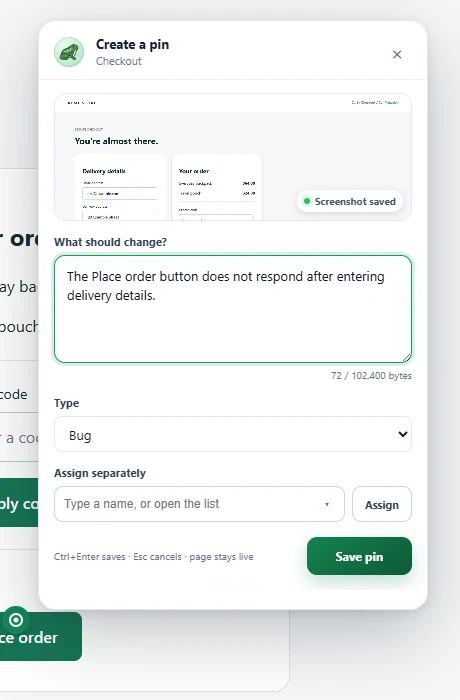
Toado 0.2.0, shown with local demonstration data. Select the image to view it at full size.
| Field | What it does |
|---|---|
| What should change? | The description. Placeholder: “Describe the issue. Type @ to mention a teammate.” Up to 100 KB. |
@ mentions | Type @ and pick a teammate. Mentioned teammates are notified when the ticket is created. |
| Type | The ticket type, from the project’s own set. Absent when the workspace has set none up; No type is a valid choice. |
| Assign separately | A combobox to assign the ticket to a teammate without mentioning them. Press Assign to add each one. |
| Marker number | Only when Pin style is Number in the panel. 1 to 99. |
| Save pin | Files the ticket. Ctrl + Enter does the same. Esc cancels and removes the marker. |
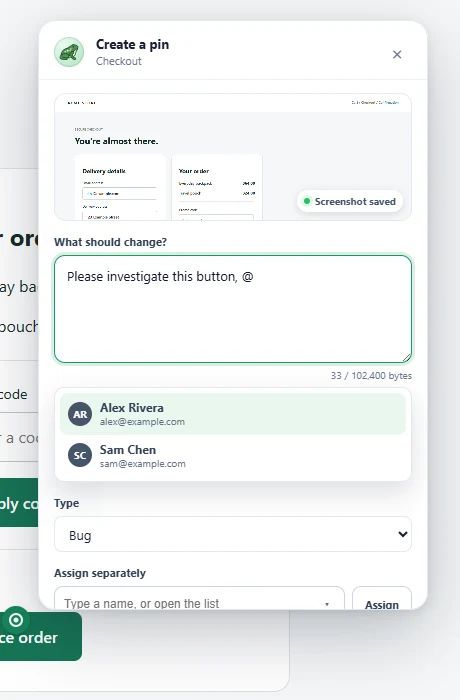
Toado 0.2.0, shown with local demonstration data. Select the image to view it at full size.
There is no title field. Toado writes the title from the description and the page once the ticket exists; the card reads Toado is writing a title… until then, and you can edit the result.
Which project and column the pin lands in is set in the panel with File in and Column for a new pin, before you arm. The composer shows the project so a mis-routed pin is visible before you save.
After you save
A toast reads Pin saved with an Open ticket link. The ticket appears in the panel’s list with its thumbnail, and on the board in the column you chose. It carries:
- the screenshot with the marker composited at the recorded spot;
- the element: selector, tag, id, classes, test id, aria-label, visible text, and the component name where the page exposes one;
- the console and network log, and errors and performance entries, as with a classic capture;
- the page URL and title, and a source badge of extension with the capture mode pin.
You can move the ticket between columns from the card’s column badge, and archive it with Remove.
Pin styles
Choose the marker in More options on the panel, under Pin style.
| Style | Looks like | Notes |
|---|---|---|
| Pin | A round pin in the project colour | The default. |
| Bug | One of five bug species | Picked at random when the pin is saved; the swatch in the panel shows one species so it does not reshuffle. |
| Number | A numbered dot | You set the number per pin in the composer. |
The colour is the project’s own unless you pick one of the six swatches under Colour. The style and colour are remembered and apply to every new pin until you change them.
Markers and finding a pin again
Markers are hidden by default on each site. Press Show markers on the panel to see where tickets already sit on this page. Locate on a card scrolls to and flashes the marker even while markers are hidden, and “That pin’s spot on the page could not be found. It may have moved or been removed.” means the element is gone; the card then sits under Needs a new location.
Pin while you record
During a walkthrough, holding Alt outlines the element under the pointer and Alt+click places a pin there. Each Alt+click also ends the ticket you were narrating and starts the next one; the recording bar says “Alt+click what you mention. Each pin is a ticket.” Pins placed this way come back into the panel when the walkthrough has been processed. The shortcuts are listed on Extension keyboard shortcuts.
Offline and limits
With the browser offline, the panel says “Offline. Pins will be filed when the connection is back.” and a saved pin queues locally. If your workspace has used its monthly ticket allowance, the composer says “Your capture limit has been reached.” and the pin is not queued. Chrome throttles screenshots to roughly two a second, so two pins in quick succession queue rather than one being dropped.
Current placement and removal controls
For screen signatures, viewport-size matching, and current preview actions, see Advanced page pins. Remove archives a pin ticket with a ten-day deadline; restoring before that deadline cancels deletion.
Where to next
- The pins panel, where File in, Pin style and the list live.
- Site claiming and projects, if pin mode says the site is not in Toado.
- Extension keyboard shortcuts, Alt+C routing and the Alt+click gesture.
- Troubleshooting page pins, when a pin will not arm or a marker is missing.