
Classic capture
Classic capture is the one-shot capture of everything a developer would collect by hand from a page and DevTools: screenshot, console, network, errors, performance, URL. It creates a ticket and opens it in a new tab. In 0.2.0 it is the secondary path; placing a pin is the primary one.
When a classic capture runs
- Alt + C performs a classic capture when In-page logging is off in the options page. With it on, the same key arms pin mode. Existing installs updating from 0.1.x start with it off, so Alt+C keeps doing exactly what it did until you choose otherwise in the popup notice or on the options page.
- Capture in the popup performs a classic capture at any time, whatever the toggle says. The popup appears on pages where the panel cannot mount, when the extension is signed out, and when In-page logging is off.
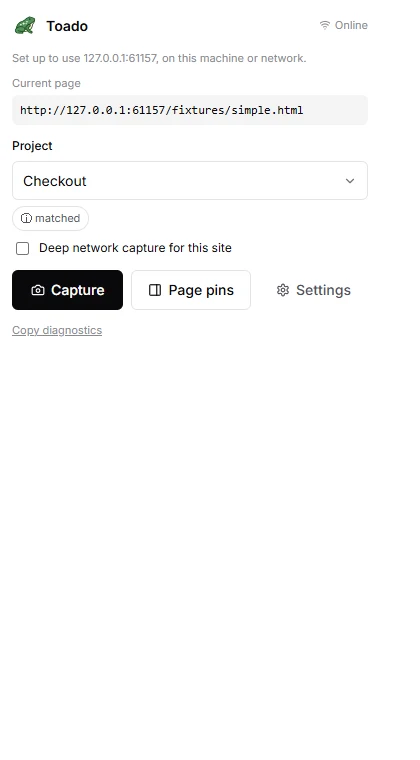
Actual popup UI with a synthetic connected session and local demonstration page. Select the image to view it at full size.
What is in a capture
| Field | Source | Notes |
|---|---|---|
| Screenshot | chrome.tabs.captureVisibleTab | The visible viewport at the moment of capture. Compressed if larger than about 4000 px on the longest side. |
| URL | The active tab | Always present. Fragments (#...) are stripped by default because OAuth implicit-flow tokens live there. |
| Console | In-page hook on console.* | log, info, warn, error, debug, each with serialized arguments, timestamp and stack trace where available. |
| Network | webRequest plus in-page hooks on fetch and XMLHttpRequest | Method, URL, status, headers, timing, size. Bodies only when Deep network capture for this site is on. |
| Errors | window.onerror, unhandledrejection | Uncaught errors and rejected promises with stack traces. |
| Performance | Navigation timing, long tasks, Web Vitals | Page load timing, longest tasks, LCP and CLS where measured. |
| Metadata | Extension-internal | Page load state, timestamps, capture id, extension version, and which streams were collected. |
A pin ticket carries the same streams plus the element block. The difference is the gesture, not the payload.
Deep network capture
Off by default. Turn it on per site with Deep network capture for this site in the panel’s More options or in the popup. It keeps what the page sent and what the server sent back, which is what you want for a bug in the data. It reads response bodies, so it can break sites that check for bots; the switch shows a warning while it is on, and the fix for a verification loop is to turn it off again.
Headers such as Authorization, Cookie and x-api-key, URL parameters such as token and password, and JSON body keys such as password, token and refreshToken are redacted before anything leaves the browser, and again on the API. See the Redaction section of Panel options and settings.
How console and network are captured
Content scripts are injected into every frame at document_start. The MAIN-world script hooks console.*, fetch and XMLHttpRequest before the page’s own scripts run, so the log starts from the very beginning of page load. Entries are buffered per tab; a capture collects the buffer and ships it.
This is why console history starts from extension load: messages logged before the extension activated are not in the buffer. The capture metadata flags it, and the ticket shows a banner.
Project assignment
A classic capture is filed into one project:
- If a project’s URL patterns match the current page, that project is preselected. See Site claiming and projects for the matching rules.
- Otherwise the last project chosen for this origin is used.
- Otherwise the popup asks you to pick.
Edge cases
CSP-locked sites
A strict Content Security Policy can block the in-page hooks. The screenshot and URL still capture; console and network may be partial or empty. The ticket gets a banner saying what is missing.
Cross-origin iframes
The top frame’s console and network are captured. Cross-origin frame contents are sandboxed by the browser and are out of scope.
Restricted URLs
Chrome blocks extensions on chrome://, chrome-extension://, the Chrome Web Store, the built-in PDF viewer and view-source: pages. The popup on those pages explains why nothing can be captured.
Incognito
Works only if you have enabled the extension for incognito: chrome://extensions/, Toado, Allow in incognito.
Heavy network traffic
Hundreds of requests are fine. Completed entries are capped per tab and across all tabs so a chatty background tab cannot starve the tab you capture. Oversize bodies are truncated with a flag.
Page navigates during capture
The capture fails with “The page changed while the capture was starting. Try again.” Capture again on the new page.
Capture health banner
If any stream came back partial or empty, the ticket detail page shows a non-blocking banner saying what is missing and why. A human reviewer and an AI agent both know up front that the capture is incomplete.
Offline
If the API is unreachable when you capture, the capture queues locally and submits when it can. Pins queue the same way. This is a safety net, not a workflow.
How it behaves:
- The extension treats itself as offline when an upload fails with a network error, when a
5xxpersists across retries, or when Chrome reports the browser offline. The panel reads “Offline. Pins will be filed when the connection is back.” while that is the case. - The toolbar icon shows a badge with the queued count. The popup shows the same.
- A periodic alarm retries the oldest item first. A successful submission clears it and lowers the badge.
- A capture is stamped with the session it was made under. If that session ends before the item uploads, the item is dropped and the popup shows a warning explaining where the badge count went. This happens even when you sign back in as yourself; it is what stops one account’s screenshots reaching another account’s workspace.
- A capture made with no project selected queues with “No project is selected; capture was queued.” and uploads once a project is chosen.
- If the workspace has used its monthly ticket allowance, new items are rejected rather than queued. The extension words it as a capture limit: “Your workspace has reached its capture limit.”
A personal access token cannot be refreshed, so a single 401 while draining the queue is terminal for that item and asks you to connect again. An OAuth session refreshes and retries on its own.
Where to next
- Placing a pin, the primary path in 0.2.0.
- Panel options and settings, the In-page logging toggle and redaction.
- Permissions and privacy, what a capture can and cannot see.
- DevTools panel, reading the captured data in the web app.