

Walkthrough pages and history
Open Video walkthrough in the sidebar. Its Recorder and History tabs separate starting or recovering a walkthrough from returning to one you have finished. Each walkthrough opens its own review page.
Recorder
The Recorder tab at /recordings has the project and microphone setup, recording controls, and a panel for unfinished work.
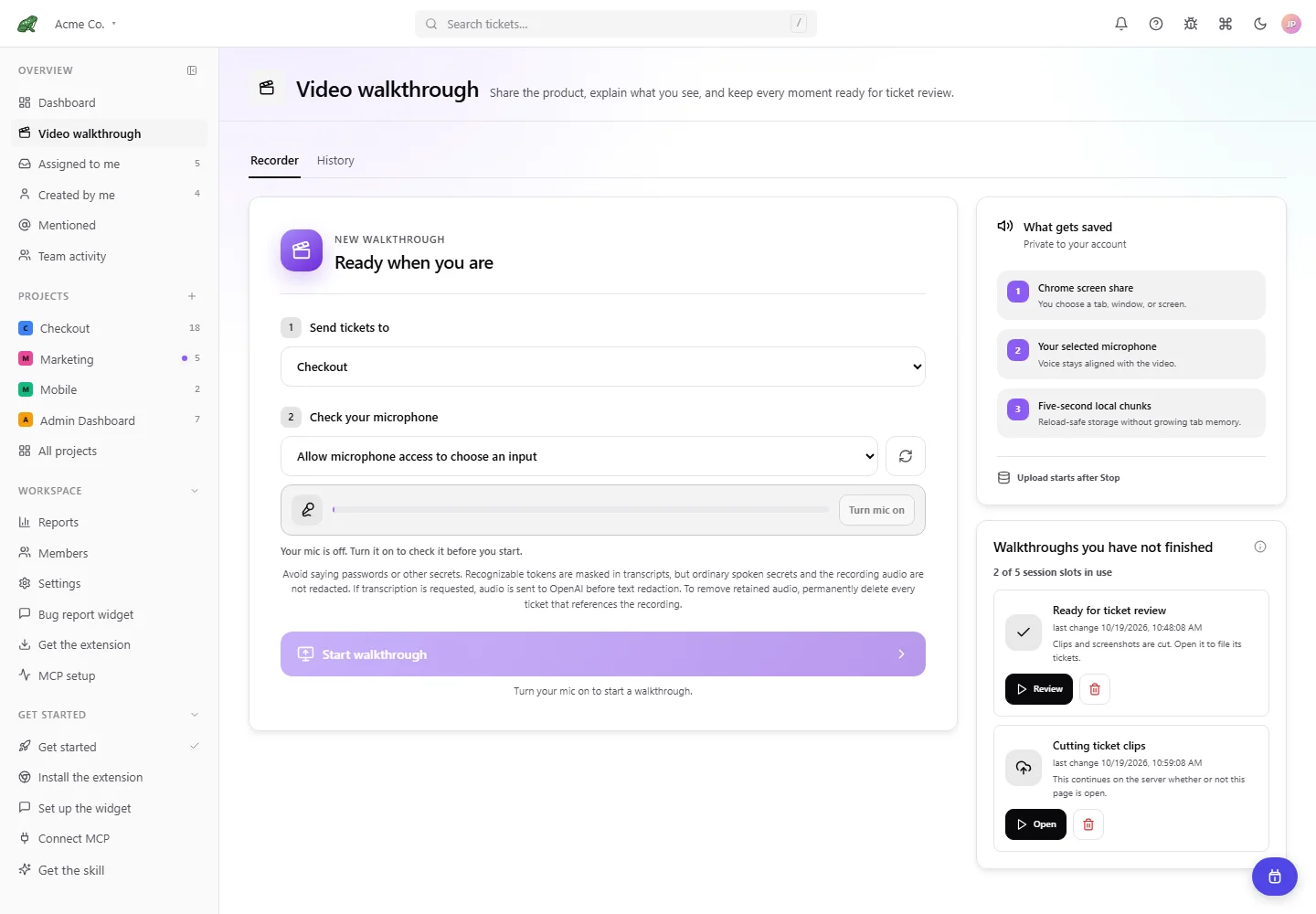
Toado 0.2.0 interface with local demonstration data; no screen or microphone recording was started for this image.
Use Start walkthrough after selecting the destination and checking the microphone. See Recording overview for mode selection and Record from a page for the extension controls.
Continue where you left off appears when this browser has recoverable local work. Continue resumes recording and needs the microphone; Keep finishes the captured material for processing; Discard recovery abandons the local recovery.
Walkthroughs you have not finished includes work still uploading, processing, or not yet filed. Automatic filing normally completes this work without a review approval. Open or review an item, retry a failed upload when offered, or discard it if it is no longer needed. The panel shows active-session slots; filing the tickets or discarding a session frees its slot. A stale connection can prevent the panel from knowing the current server state, so follow its connection message before starting more sessions.
History
The History tab at /recordings/history lists your finished walkthroughs in the selected workspace and accessible projects. It is your recording history, rather than every teammate’s recordings.
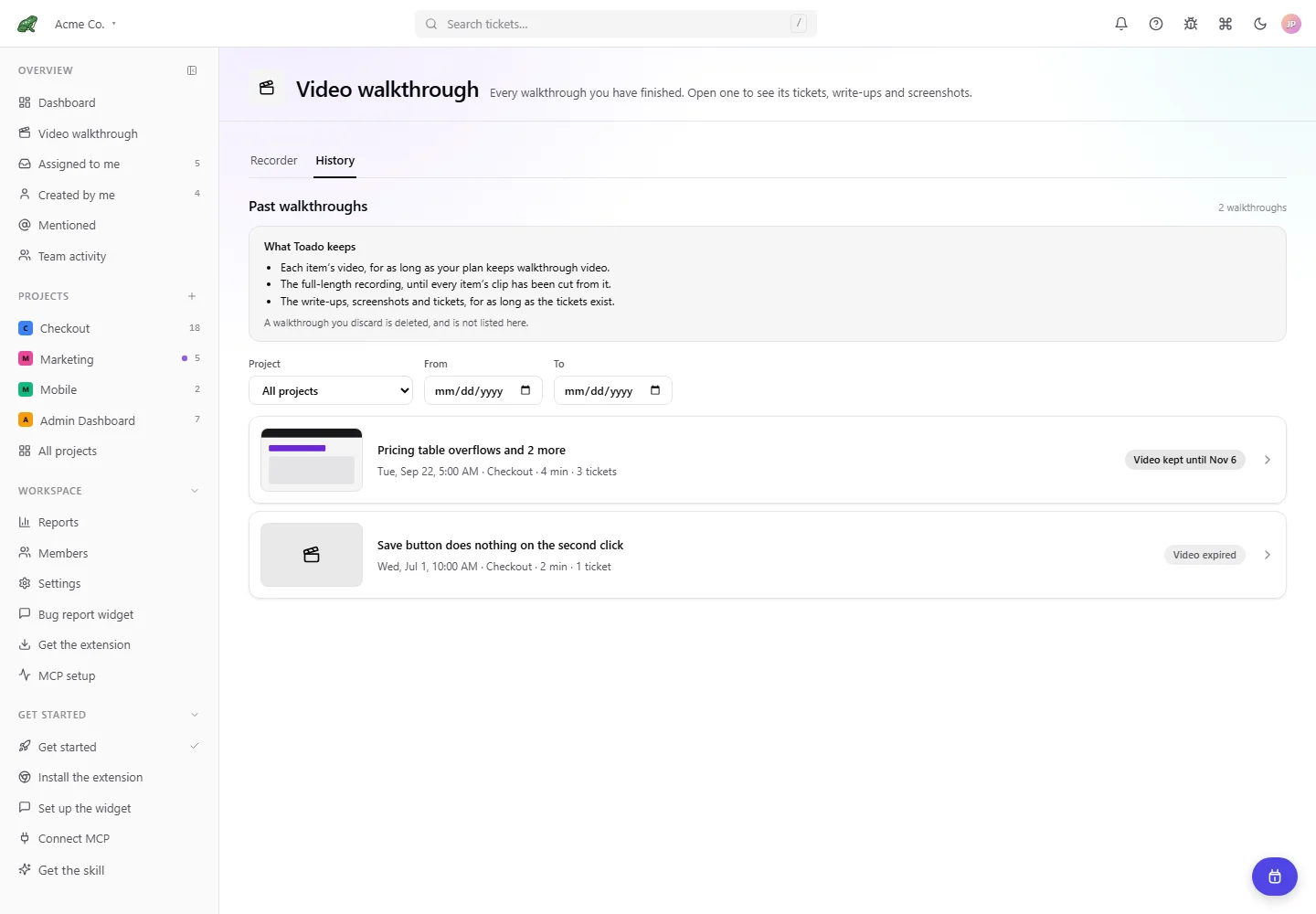
Toado 0.2.0 interface, shown with local demonstration data.
Each row shows its first ticket’s title, recording time, project, duration, ticket count, and a thumbnail where available. Video or audio status explains whether media is kept until a date, expired, or was never kept, for example because no clip was produced. Expired specifically means media aged out.
Use Project, From, and To to narrow the list. Dates use your local time zone and include the selected To day. Clear removes the filters. When there are more than 20 walkthroughs, paging controls appear: choose 20, 50, or 100 Per page, then use numbered pages, Previous, or Next. These controls search the matching history, rather than filtering only the rows currently displayed.
Open a row to return to its review page. All walkthroughs on that page returns to History. Discarded sessions do not appear as finished history.
Inspect the walkthrough
The review page at /recordings/[id]/review groups the walkthrough into ticket moments. Inspect each clip, narration, description, and screenshot together. Tickets normally file automatically after clip processing and transcription settle, or after up to ten minutes of waiting on transcripts once processing is ready. This page is not an approval gate; tickets can already be visible to the team or eligible for automatic Jira sending when you open it.
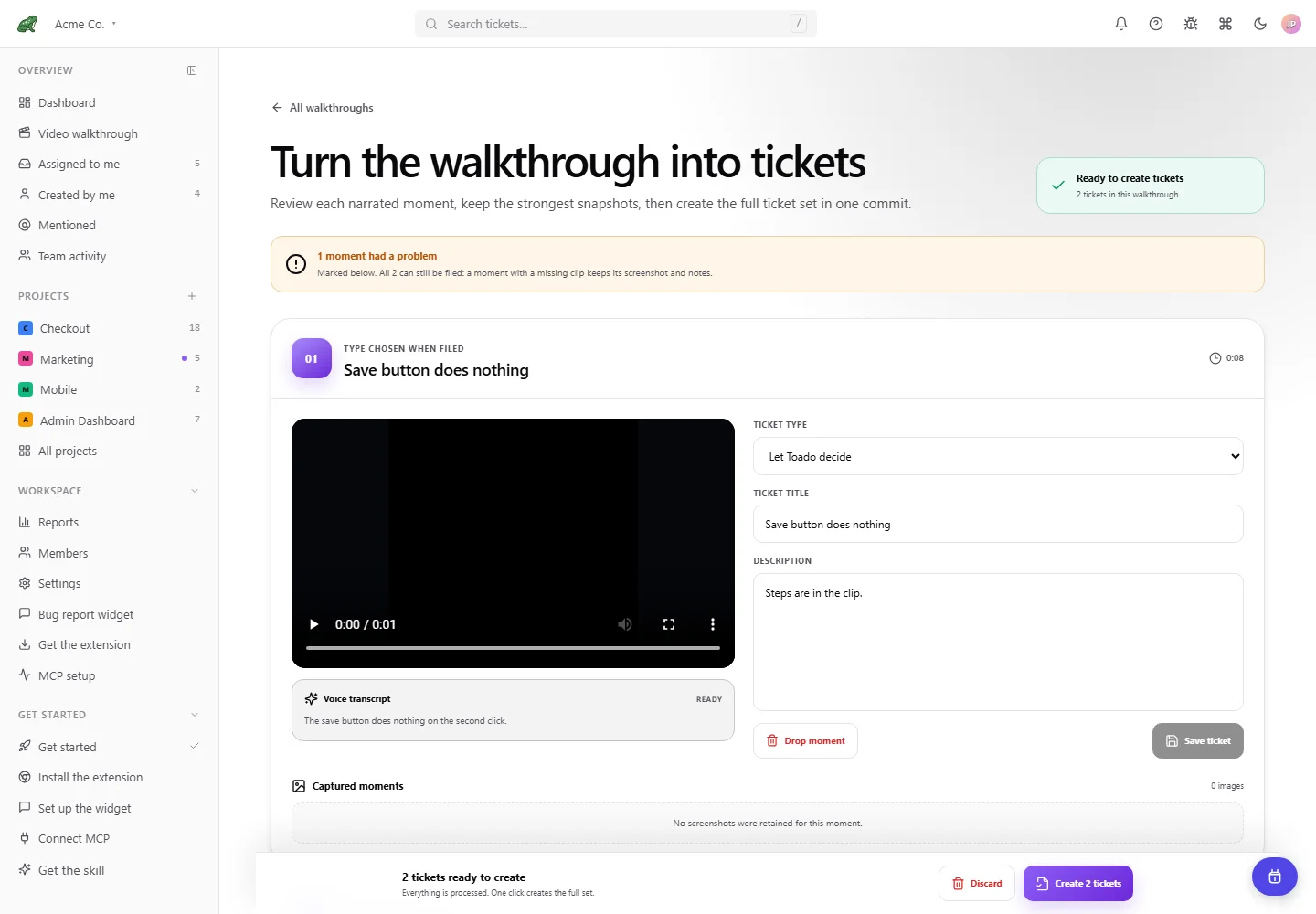
Local demonstration data shows an unfiled session with a failed clip. This illustrates the temporary draft controls and partial-failure summary; it does not imply that sessions wait for your approval.
While the session is still unfiled and the relevant controls are available:
- Edit proposed titles and descriptions. The draft type choices are Let Toado decide, Bug, and Feature request; custom workspace types are chosen on the filed ticket. Save ticket here saves the draft moment; Create [number] tickets files the ticket set on the board. Assignment controls are also available after filing.
- Use Drop moment to exclude unwanted work before filing.
- Reorder or remove screenshots. The star control, labeled Set snapshot [number] as primary, chooses the leading image.
- Use Request transcript, Retry transcript, or Retry clips when available. Their availability depends on processing state, permissions, allowance, and safe retry conditions.
These draft controls stop being available once automatic or manual filing completes. If automatic filing is blocked, follow the page’s recovery message; manual Create [number] tickets can be offered when the session is eligible. You can inspect text while processing continues; a pending transcript does not always block it. A terminal clip failure can still allow tickets from screenshots and notes, so check the page’s message instead of waiting for every clip to become playable.
Edit after filing
After creation, the page shows [number] tickets filed, with links to Open the board or Record another. Ticket title, description, and type now edit the actual board ticket through Save ticket. Assignment changes save immediately, independently of that button.
Open ticket opens the full ticket. Delete confirms permanent ticket deletion, rather than archive or dropping an unfiled moment. Storage cleanup follows the deletion lifecycle rather than happening instantly. Draft screenshot and moment controls are locked once filed, while live ticket fields remain editable.
To remove retained recording audio, permanently delete every ticket that references that recording; archiving one ticket is not equivalent. See Data retention for cleanup and exported copies.
If a clip expires, the page says This clip has expired and can retain the ticket’s screenshot and write-up. Expiry is different from a processing failure: a retry control is not a way to recover media that aged out under retention.
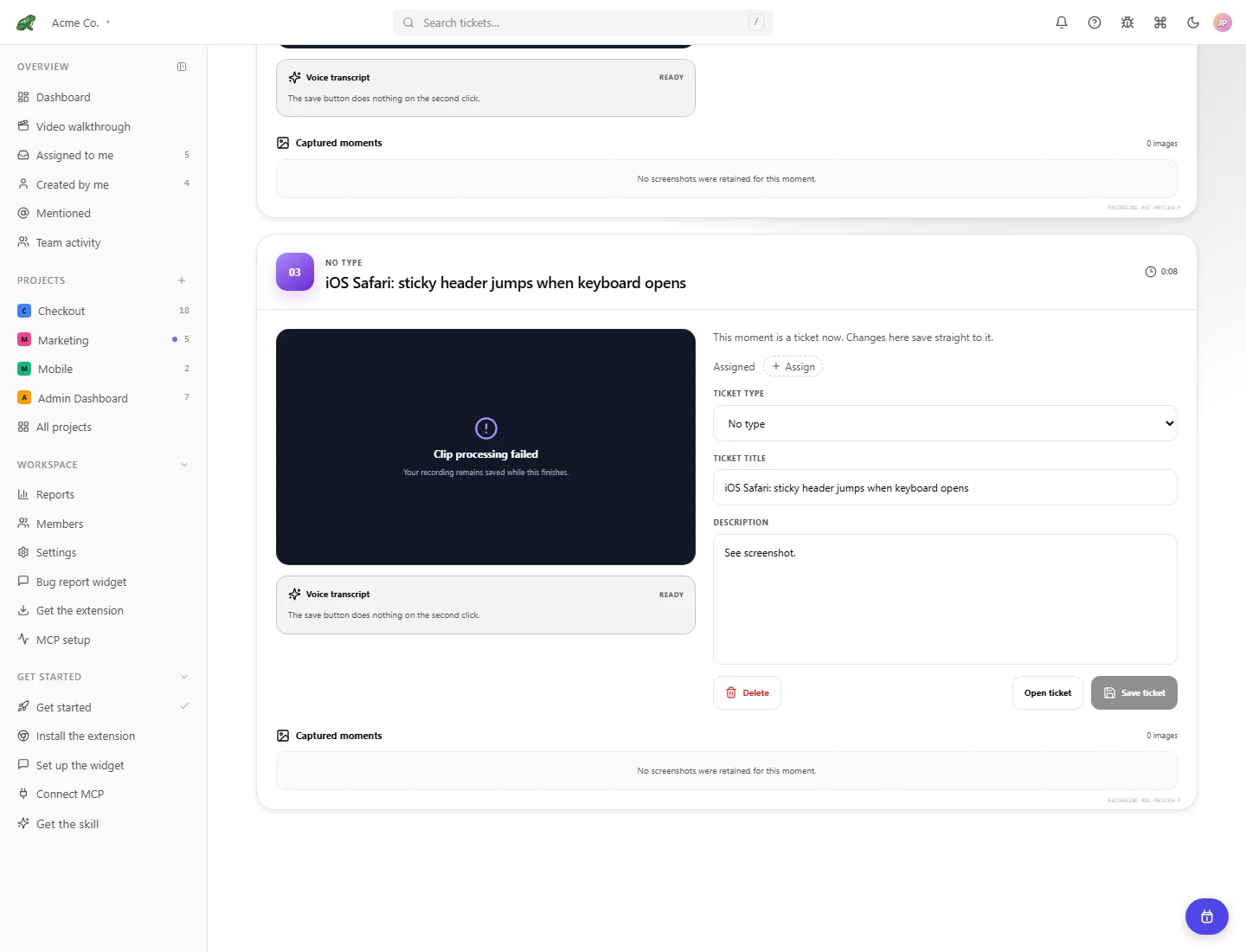
Local demonstration data showing a filed ticket. The example includes a failed clip to illustrate that media state and ticket editing are separate.
Where to next
- Recording overview, modes, privacy, and allowances.
- Dashboard, find walkthroughs that have not yet filed.
- Reports, review activity and recording use.
- Ticket detail, continue working on the filed tickets.