

Jira integration
Toado can send tickets to Jira Cloud on Team, Business, and Enterprise plans. A workspace owner connects the site and configures each project’s mapping. Members and owners can send tickets; viewers can inspect existing Jira links.
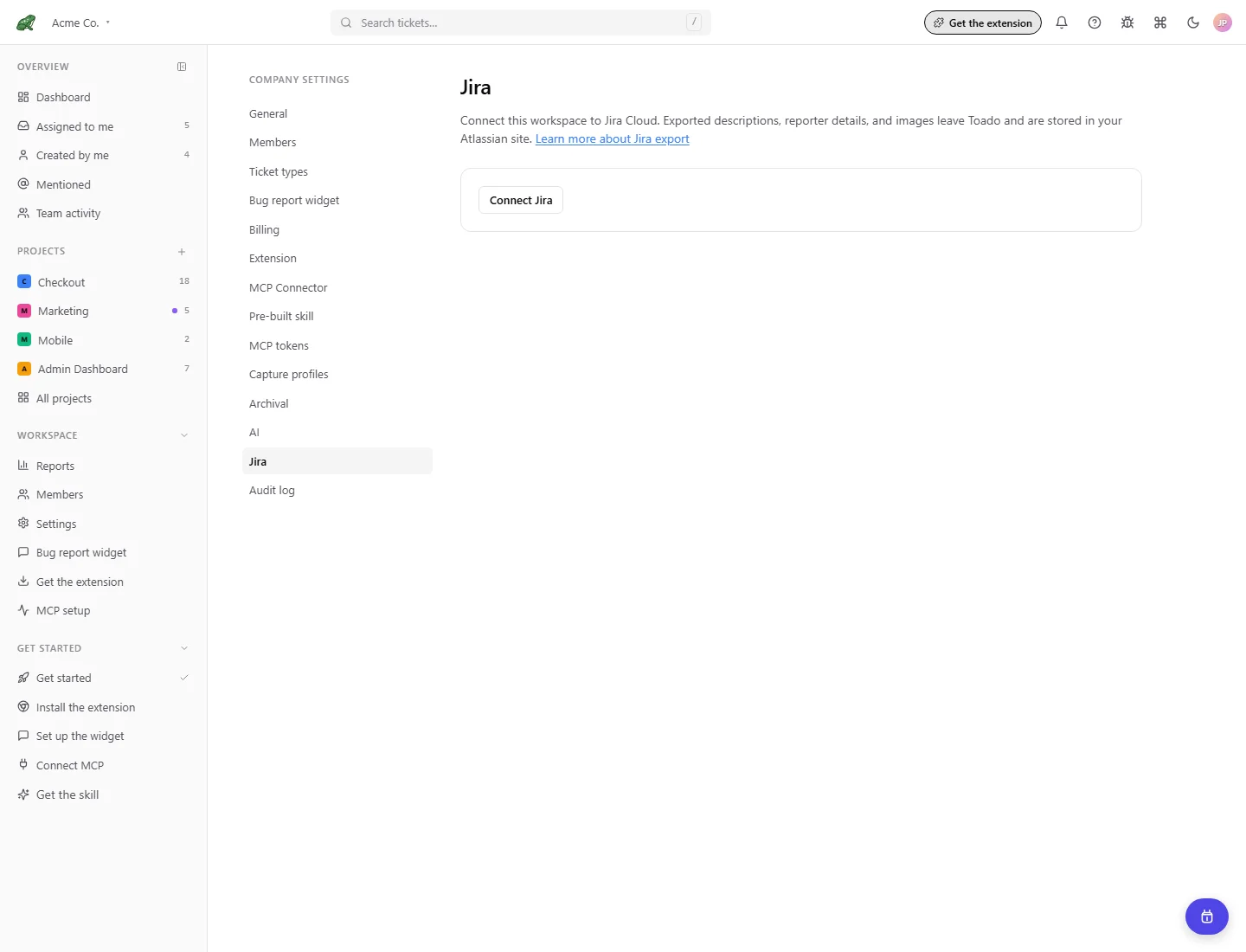
Toado 0.2.0 interface, shown with local demonstration data.
Connect the workspace
- Select the workspace you want to connect.
- Open Company settings > Jira and choose Connect Jira.
- Authorize access in Atlassian.
- If the account can access multiple Jira sites, choose the site for this workspace and select Connect.
A workspace connects to one Jira site. If you switch workspaces during authorization, return to the workspace that started the connection to finish choosing its site. Reconnecting to a different site can require remapping projects; read the site’s warning before continuing.
Exported content is stored in your Atlassian site. Only connect a site where that ticket content may be shared.
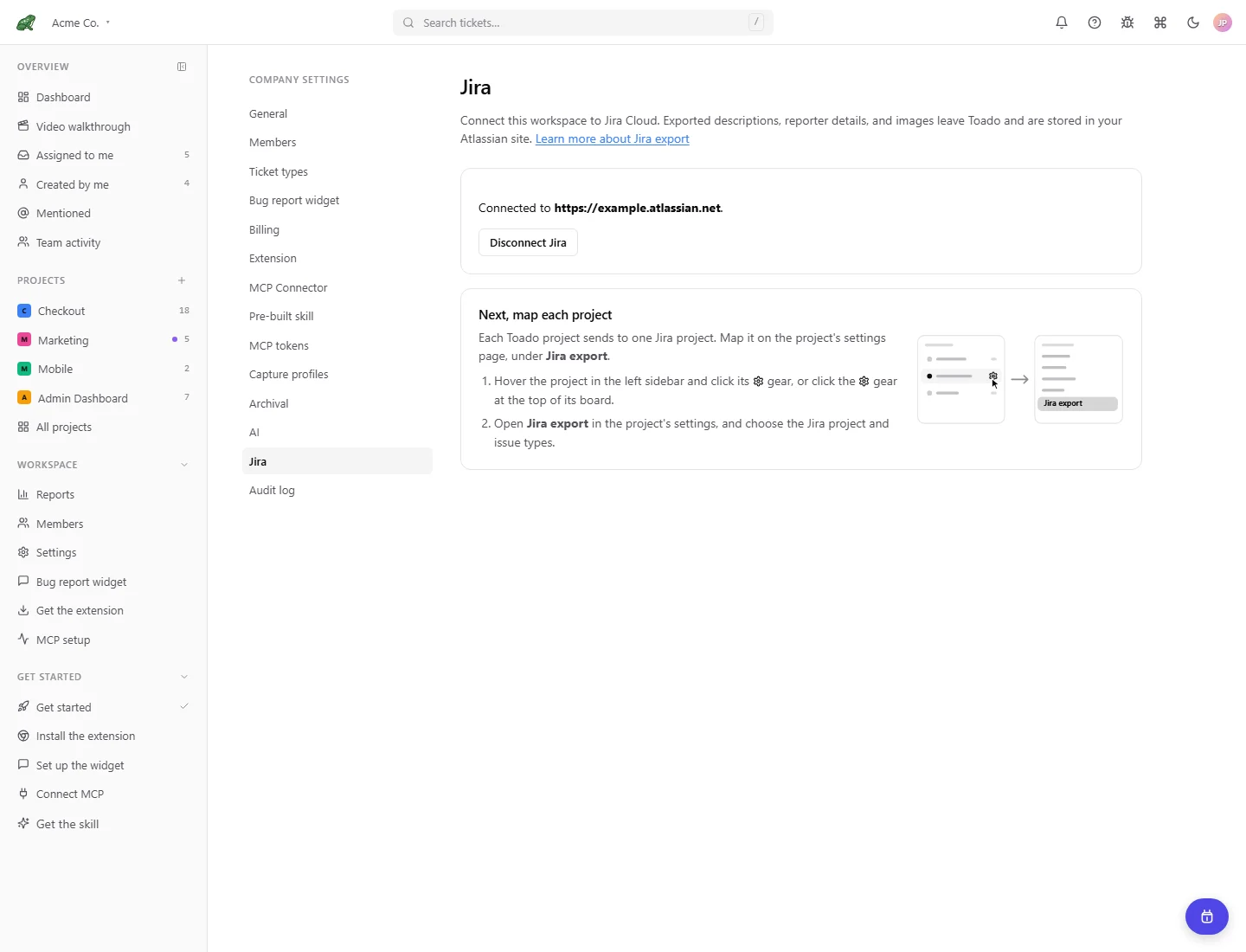
Map a project
Open Project settings > Jira export. Choose the Jira project, a fallback issue type, the issue type for each Toado ticket type, and any default labels. Save the mapping. Issue types come from the selected Jira project; subtasks are excluded.
For example, map Bug to the project’s Bug issue type and Improvement to Task. A ticket without a specific mapping uses the fallback. This is ticket-type mapping, rather than a general custom-field mapping editor.
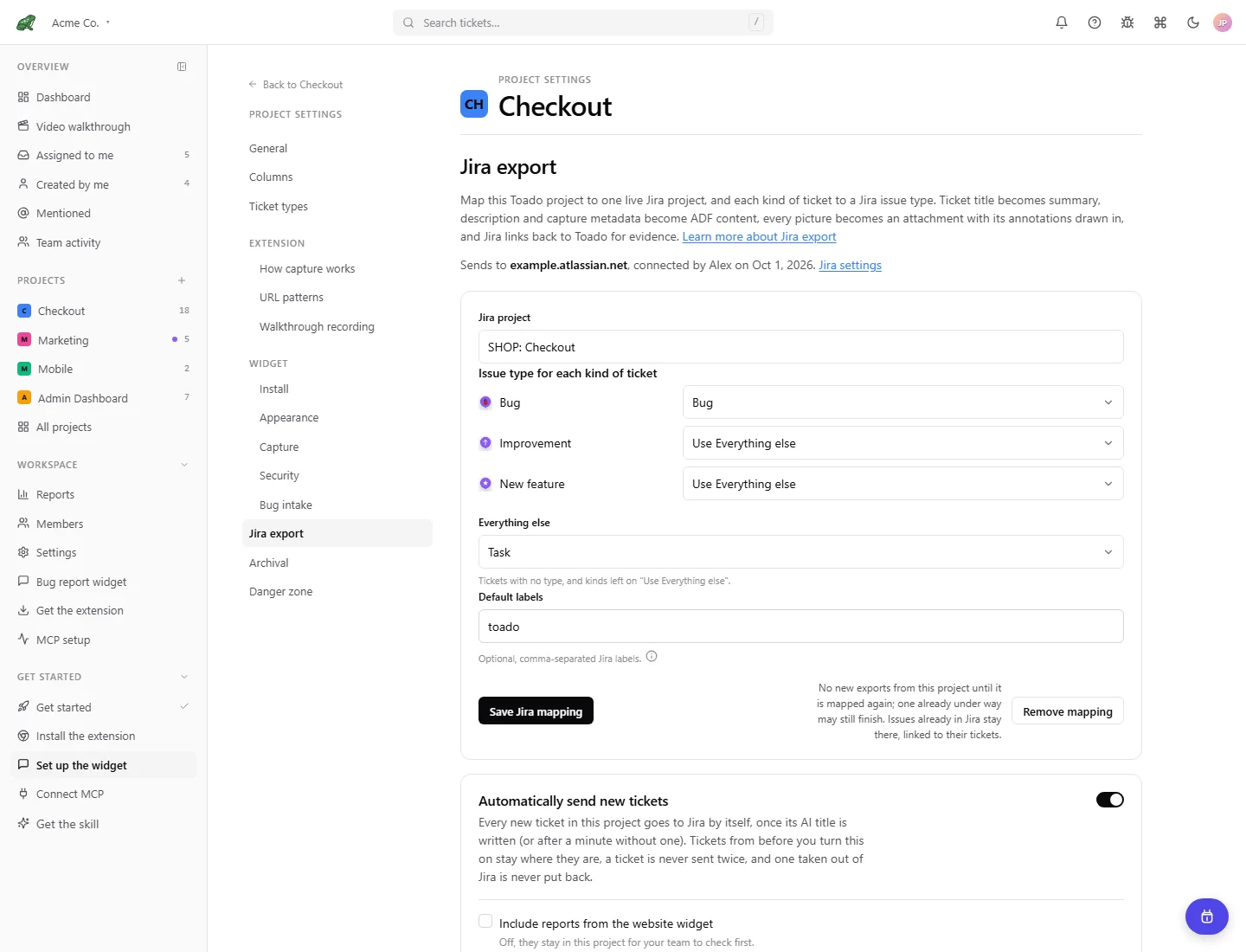
Send tickets
From the ticket page or a board card, open the … menu and choose Send to Jira. To send several, select the tickets and use Send to Jira in the bulk action bar. Sending more than ten shows a confirmation. Check the result for skipped or failed tickets when sending a selection.
| Sent to Jira | Stays in Toado |
|---|---|
| Title as the issue summary; description with page, screen size, and a link back | Detailed console and network logs; a summary of captured errors, failed requests, and performance metrics can be included in Jira |
| Ticket images rendered with annotations, redactions, and blur | The interactive annotation editor |
| Walkthrough video when it fits the Jira site’s attachment limit | Video that exceeds that limit, with a comment and link on the Jira issue |
Mapped issue type, configured labels, and a toado- ticket label | Toado’s own board state and access controls |
People following the link back still need permission to see the ticket in Toado.
Automatically send new tickets
After mapping the project, configure Automatically send new tickets on its Jira export page. This is optional. Connecting and mapping alone do not enable automatic sending.
- A new ticket is eligible after its AI title is written, or after a minute without a generated title.
- Tickets already published before auto-send was enabled are excluded. A draft captured earlier but saved and published after enabling can be eligible.
- Include reports from the website widget is off by default. Turning it on can export external reports even while they are waiting in Bug intake; intake is not a separate approval barrier for auto-send.
- Choose Every kind of ticket or selected ticket types. Tickets with no type qualify only when every kind is selected.
- Under Once it is in Jira, optionally choose a column to move the ticket to and whether to archive it. Archived tickets remain linked and can be restored.
Walkthrough-created tickets can be picked up at the next sweep, approximately every 30 seconds, before their narration-based title is finalized. If that text needs review first, keep automatic sending off for that workflow.
Automatic sending is capped at 120 tickets per workspace per hour. A send has up to eight attempts; exhausted failures need a person to inspect and retry.
Save the setting after changing it. Auto-send does not send a ticket twice or automatically put an issue back after it is removed from Jira.
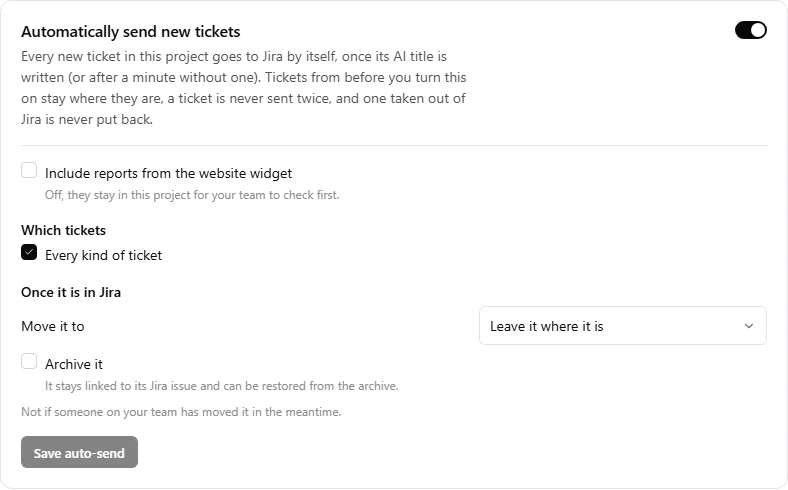
Local demonstration configuration. No production connection or automatic sending was changed.
Follow status, retry, and unlink
Once sent, the ticket shows a Jira issue key that opens the issue. A failed send shows an error and a retry action. Issue creation and attachment upload can fail separately, so check the existing issue before assuming nothing was created.
When Jira update webhooks are configured and working, a linked issue reaching Done moves the Toado ticket to its project’s last column. Reopening that issue can return the ticket to its saved prior column, provided a person has not moved it elsewhere in the meantime. Toado board moves do not send status changes to Jira.
Changing a sent ticket’s type in Toado queues the issue type selected by its Jira mapping. Jira can reject a type change across incompatible workflows or screen schemes; the ticket then explains that Jira kept the old type. Jira type changes do not map back to Toado.
General comments and assignee changes are not synchronized between the two systems. Status updates depend on webhook availability and an eligible workspace plan; do not assume a linked issue means all fields stay identical.
Unlink from [issue key] forgets the link without deleting the Jira issue. Selected board tickets also offer bulk Unlink from Jira. A later manual send may reconnect the existing issue or create one if it no longer exists. If an issue is deleted in Jira, Toado can unlink it when notified; where that notification is unavailable, opening the mapped ticket checks for a missing issue and lets you unlink it.
Toado does not delete Jira issues or attachments. If an image changed after export and Toado stops a resend because an earlier file remains in Jira, remove that earlier file in Jira before retrying.
Connection and plan problems
- Reconnect Jira restores authorization that expired or was revoked.
- A removed Jira project or issue type requires checking the project’s mapping.
- Removing a mapping also removes that project’s auto-send configuration.
- Removing a mapping or disconnecting leaves existing Jira issues intact.
- Below Team, new connections, mappings, and sends are blocked. Existing links remain usable, and permitted users can still unlink, remove mappings, or disconnect.
Where to next
- Ticket types, define the kinds used by mappings and auto-send.
- The board, select and manage groups of tickets.
- Reports, see manually credited Jira sending activity and the workspace connection summary. Automatic sends do not count as a person sending; confirm authorization on the Jira settings page if exports fail.