
Site claiming and projects
Toado finds pins by the page address. When you open a page, the extension asks which project claims that address and looks up its pins. A page no project claims has nothing to ask, so a pin placed there could be filed and never found again. That is why the panel does not mount on an unclaimed site: it offers to claim it first.
The Add this site card
On a site no project claims, clicking the Toado icon (or pressing Alt + C or New pin) opens a card instead of the panel.
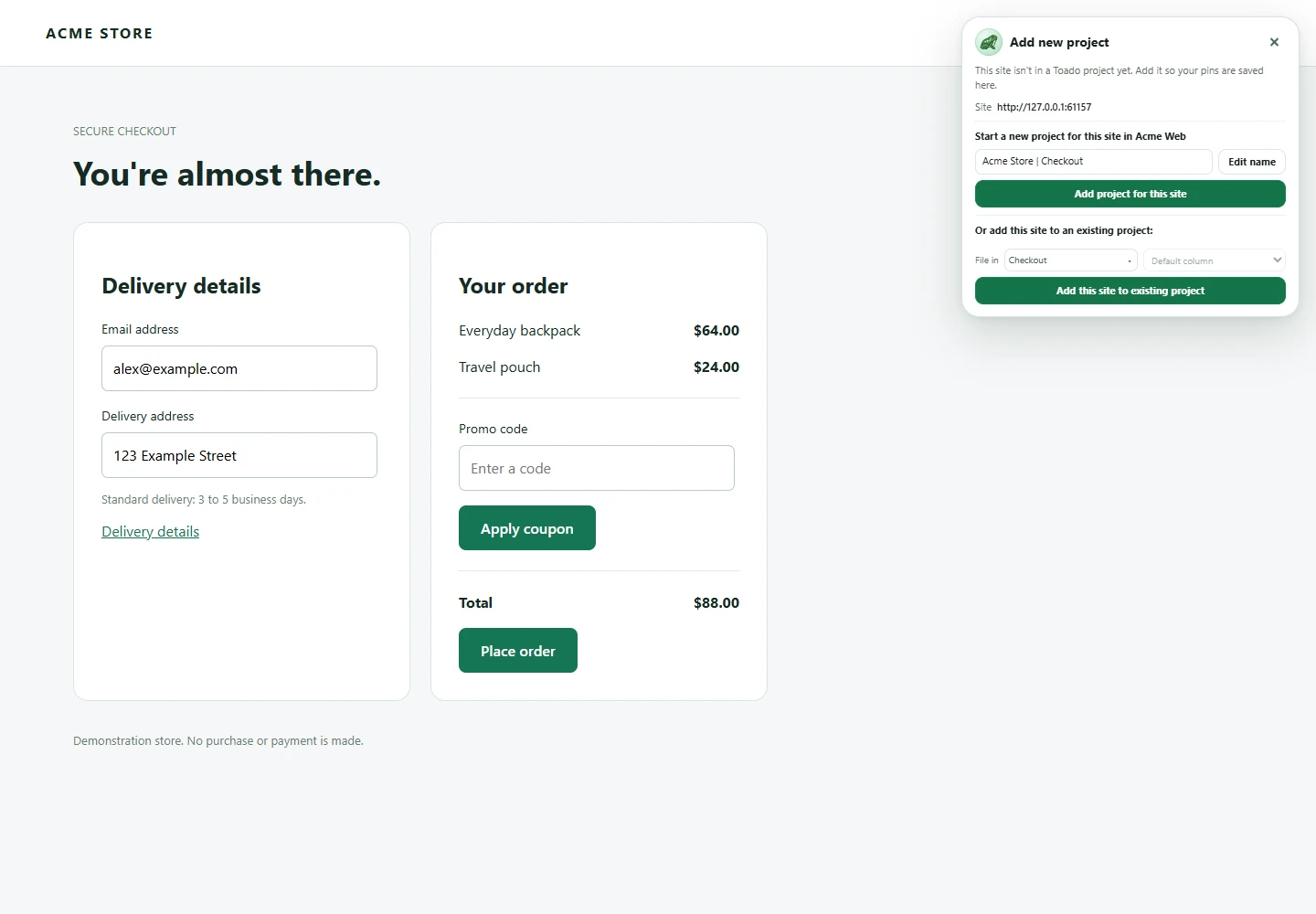
Toado 0.2.0, shown with local demonstration data. Select the image to view it at full size.
| Part of the card | What it does |
|---|---|
| Add this site to keep pins here | The heading, with the line “Toado finds pins by the page address, so a project has to claim this site first.” and the site’s origin underneath. |
| Start a new project for this site | A name field (Name for the new project), prefilled with a suggestion from the site. |
| New project for this site | Creates the project and claims the site in one step. Enter in the name field does the same. |
| ”Or add this URL to an existing project:“ | Shown when you already have projects. Pick one in the picker, then press Add this site here. |
| X | Dismisses the card for this site. |
When the claim succeeds, the panel announces “This site is now in Toado. Page pins are on here.” and opens.
What gets saved
The card claims the whole site, not the one page you were on. It writes the page’s origin (for example https://app.example.com) to the project’s URL patterns; the server stores it as https://app.example.com/**, which is what you will see in the project’s URL patterns tab.
- If the project already claims this page through a narrower pattern such as
https://app.example.com/admin/**, nothing is written. Adding the whole origin would be a broader grant nobody asked for. - If the origin only differs from an existing pattern in case, port or punycode spelling, it collapses into that pattern and nothing changes.
- A project holds at most 20 URL patterns. Past that the card refuses with “That project already has 20 URL patterns, which is the most it can hold.” Remove one in project settings first.
- Pages that are not ordinary
httporhttpsURLs cannot be claimed: “Page pins only work on ordinary web pages.”
You can also add patterns by hand in the web app under the project’s URL patterns tab. The card is the shortcut for the common case.
How a page is matched to a project
The rules are the same in the extension and the web app:
- A bare origin means the whole site.
https://example.commatches every page on it. - A pattern with a path, such as
https://example.com/app/**, matches that path and everything under it. - Your own workspace is searched first. “Your own” means the workspace the project you filed into last belongs to. If any project there matches the page, the page goes there, even when another workspace you belong to has a closer pattern for it. Only when your own workspace has no match are the others searched.
- Within one search, the most specific pattern wins. On an exact tie the panel prefers a project it already has reason to pick: one the page’s existing pins file into, then the one you used last. Failing that, two tied projects in the same workspace resolve to one of them stably, and a tie across workspaces has no answer at all, so matching is treated as having failed and the fallback applies: the project you filed into last, or failing that the first one cached.
- Duplicate patterns collapse when the list is saved.
The match runs locally against the projects cached in the extension, before any request is made. A page that matches nothing generates no lookup, no capability check and no ticket request.
Which project a pin lands in
The File in picker on the panel is preselected from the match above. You can change it before you arm a pin; the composer shows the chosen project so a wrong one is visible before you save. Column for a new pin picks the column inside that project and reads Default column until you choose.
Two projects can legitimately claim the same page, for example two apps you run on localhost at different times. The picker is how you choose between them; the choice is remembered for the site.
No projects at all
A brand-new account with no projects gets the popup rather than the panel, because there is nothing to claim into. The popup says “Captures live inside a project. Create your first one” with a link to the web app. Create a project there, or open any site and use New project for this site on the claim card.
Dismissing page pins on a site
The X on the panel, the pill or the claim card hides page pins on that site for now. It is not permanent: pressing Alt + C or New pin from the pill brings the panel back, and so does the Page pins button in the popup.
Where to next
- Placing a pin, once the site is claimed.
- The pins panel, the File in and Column for a new pin pickers.
- Companies and projects, URL patterns and the rest of project settings in the web app.
- Troubleshooting page pins, if the card refuses or the panel still does not open.