

Widget recording and pointing
The installed widget can offer visitors Record what you see as well as the screenshot report form. Visitors can point at problems while recording, review their notes and ticket types, then send reports without a Toado account or extension.
Enable the workflow
Owners configure Project settings > Widget > Capture. The groups include Recording, Pointing, and Technical details.
Under Recording, use Visitors can record the page, Longest recording, Visitors’ voices, and Minutes visitors may record each month to control what is offered and the allowance. Pointing has its own configuration. Voice handling and recording availability also depend on server and workspace configuration.
Visitor recording requires an eligible paid plan, supported desktop Chrome or Edge, browser sharing permissions, and a non-empty allowed-origin list. Supported wildcard entries can be used for visitor recording. Authenticated Team pins has the stricter exact-origin requirement described below. If recording is unavailable, the widget can still offer supported reporting and pointing options. Follow the app’s availability explanation before changing your site.
Record as a visitor
- Open the widget and choose Record what you see. The owner can customize the heading and explanatory line.
- If offered, choose Video and voice or Just video, then Start recording.
- Choose the sharing source in the browser. Close private content before recording.
- Use Point or
Alt+click(Option+clickon Mac) to identify elements. A recording supports up to ten pins. - Add a note where prompted. Notes are especially useful without narration or when voice is not being converted into report text. Use Mute or Unmute to control the microphone when available.
- Choose Stop when finished, or Discard to abandon the walkthrough.
Pointing and screen recording are different permissions: highlighting an element does not give the widget privileged access to every browser tab. The shared source is what the browser allows you to record.
Review and send
Use Watch your recording to review the result. Check each pin’s note and ticket type, correct the text, and choose Send to submit the reports. The team receives the tickets and available recording evidence in the configured project.
Upload starts after Stop while the review is open. Send is not the first moment recording bytes leave the browser. Do not record anything that must never be uploaded.
Voice and privacy
The owner’s voice settings determine whether narration is merely recorded or also processed into report text. Video and audio are not automatically redacted. Screenshot masking for the widget’s DOM-rendered report image does not hide sensitive content in the recorded video.
Do not show passwords or confidential material while sharing, and do not say information that should not reach the team or its configured processing services. Monthly allowance and clip retention can limit availability even after recording was enabled.
Team pins without the extension
On an appropriately configured site, Team pins lets a teammate sign in through a separate window and use persistent page pins and walkthroughs without installing the Chrome extension. It requires an authenticated Toado teammate and exact allowed origins; it does not authenticate every visitor who opens the widget.
Use Page pins for shared pin concepts, but enter through the widget rather than the extension toolbar or Chrome command shortcuts.
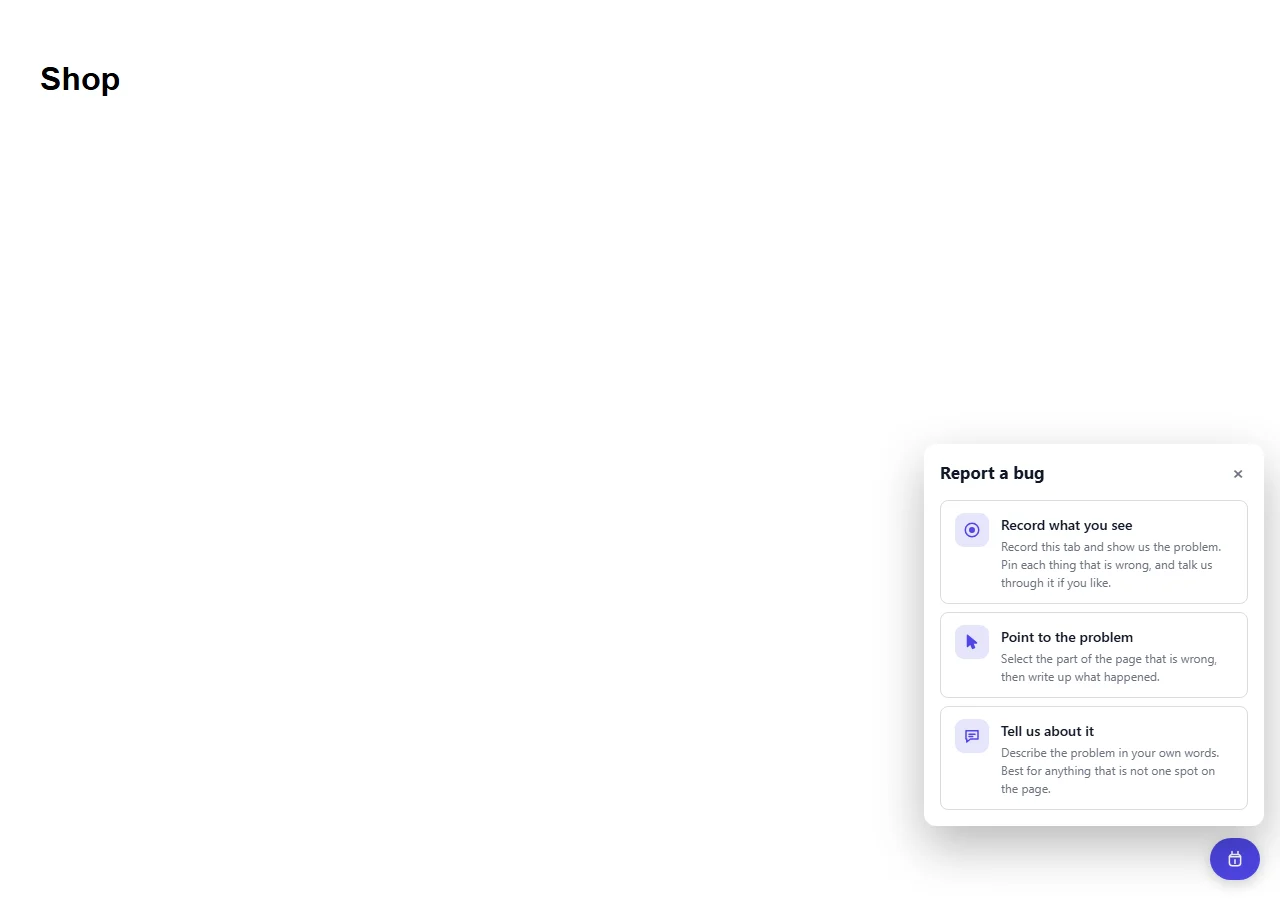
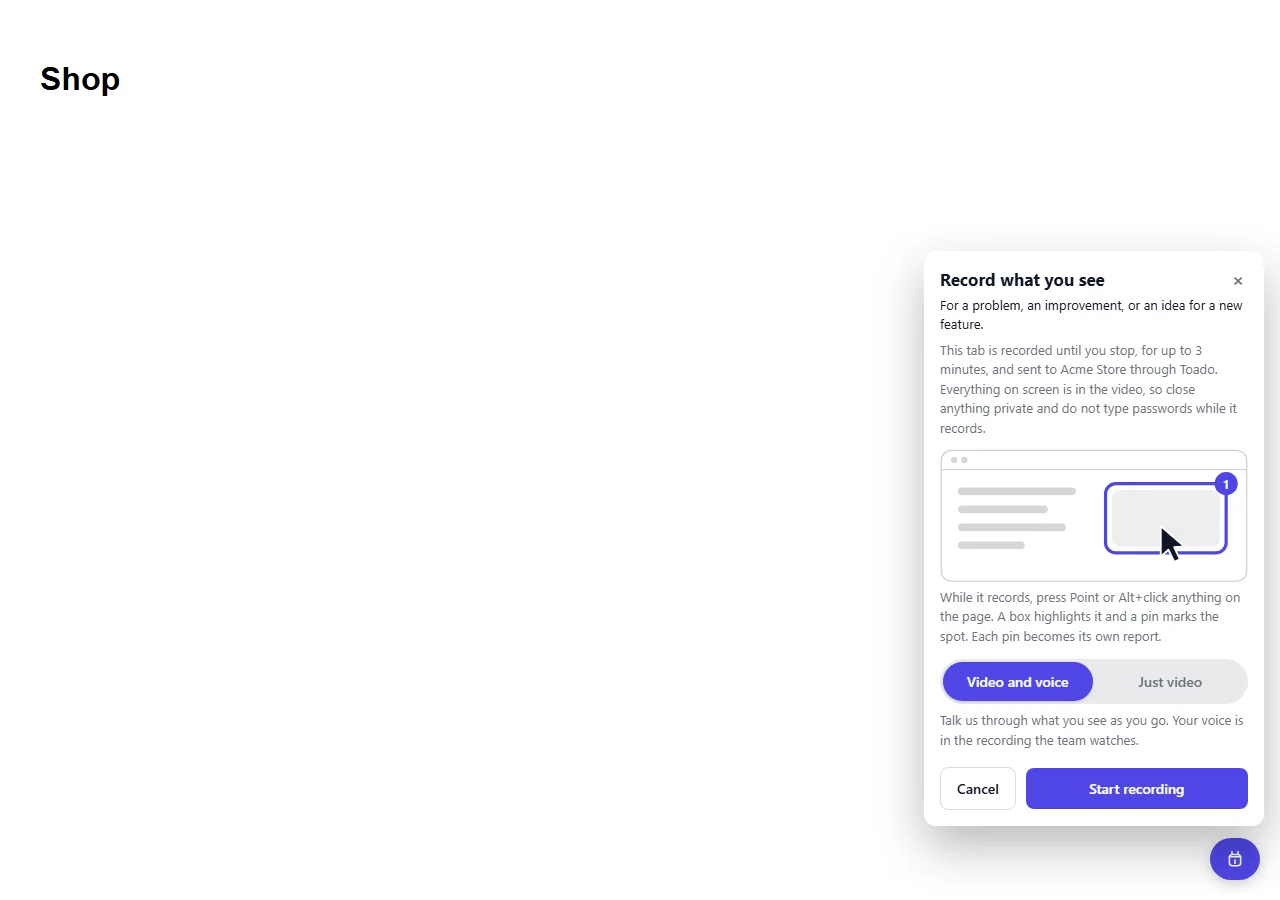
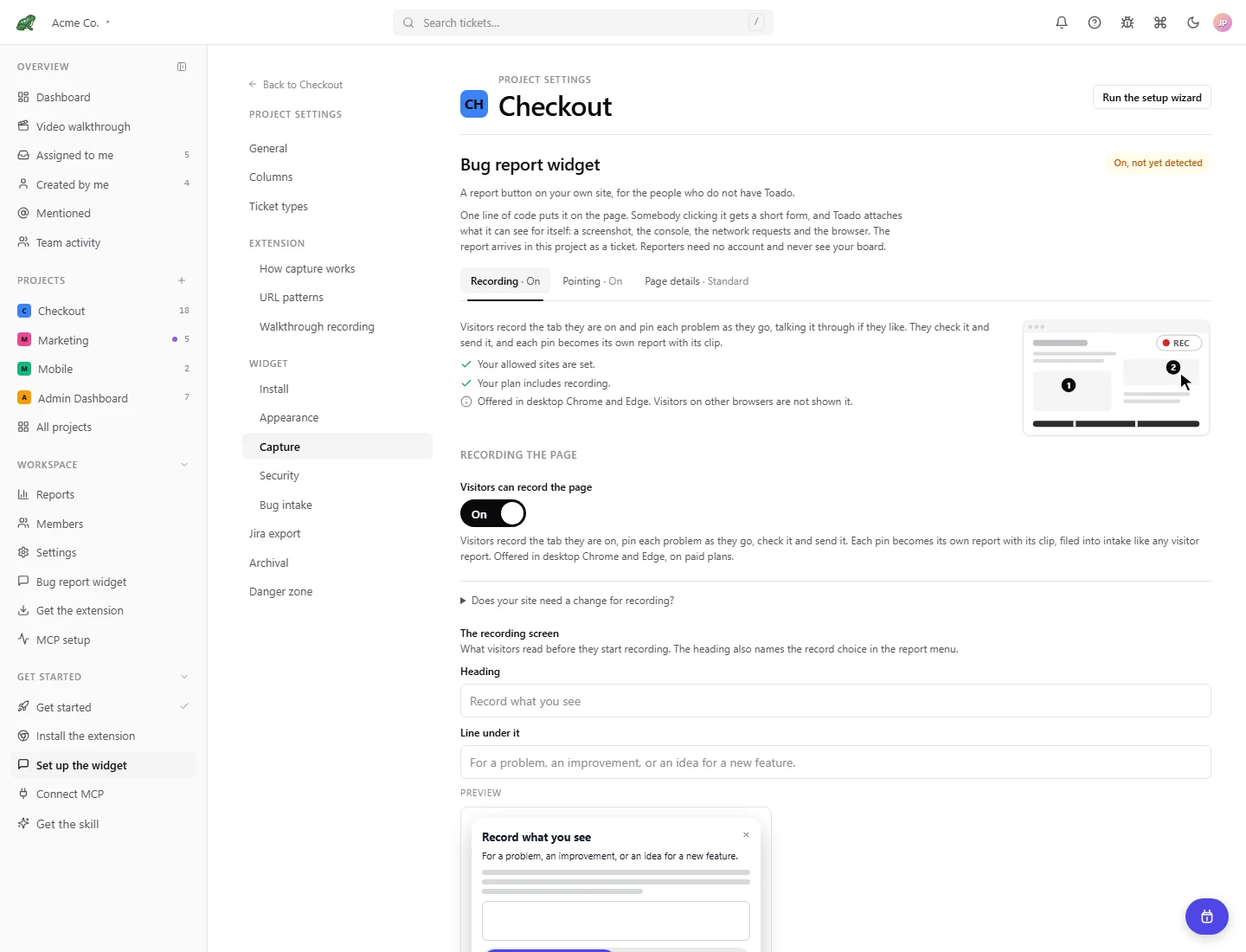
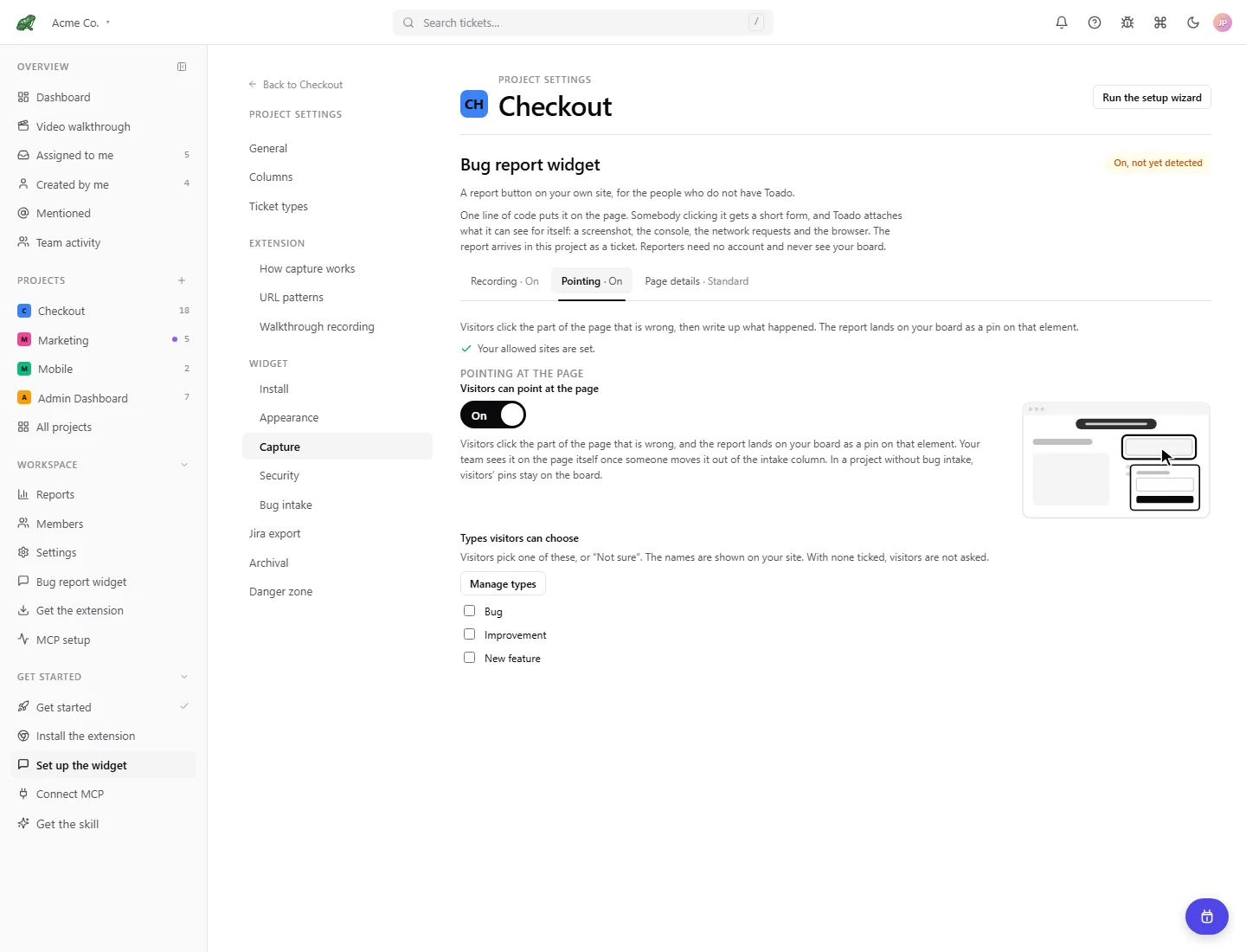
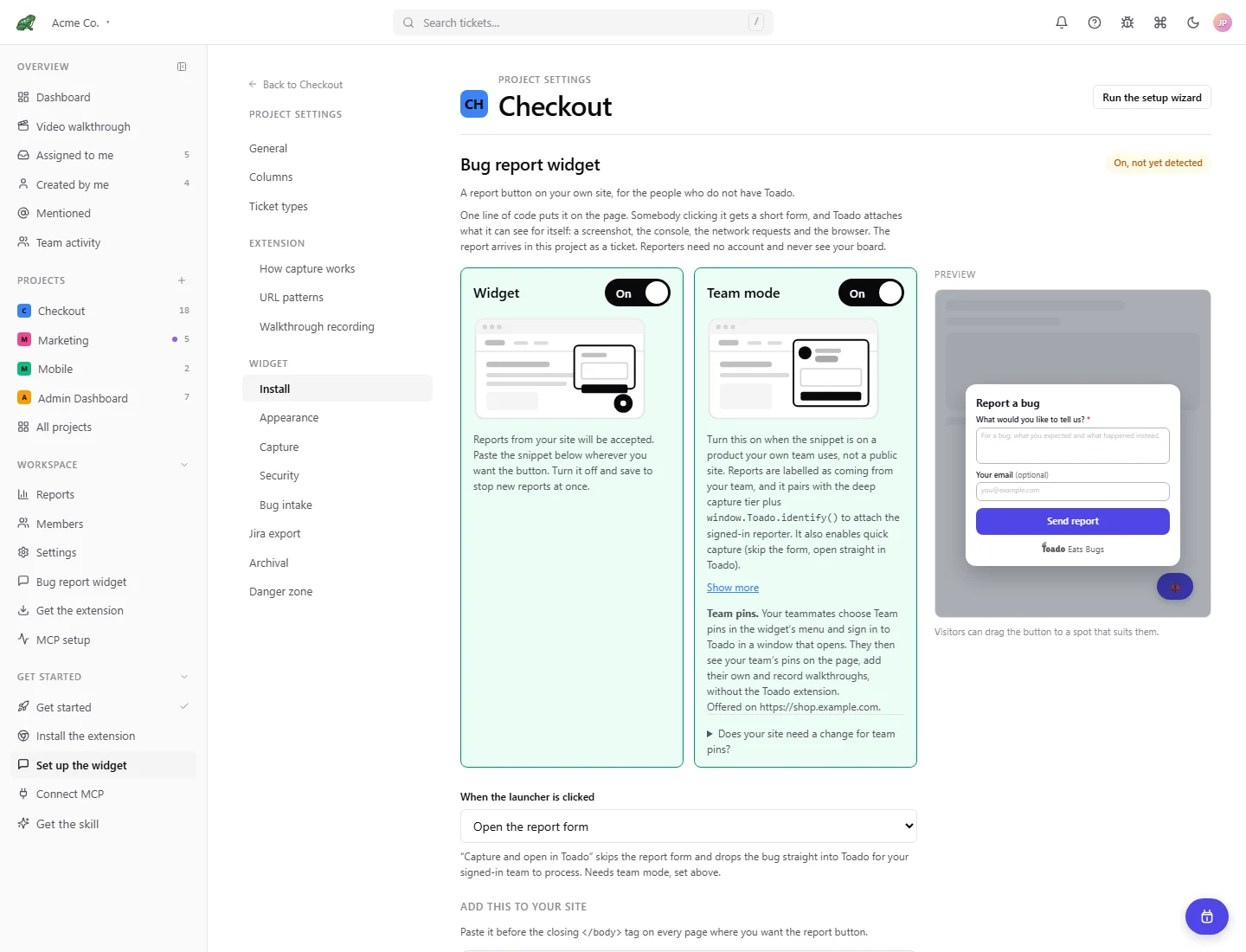
Actual widget and settings UI with local demonstration data. No reports were sent and no recording was started. Example allowances and enabled options are illustrative.
Where to next
- Widget installation, install and verify the snippet.
- Widget capture, screenshot and technical evidence settings.
- Widget security, allowed sites and abuse controls.
- Walkthrough recording, signed-in team recording and review.